
Since Google is restricting sideload apps process, The Only trusted place is Play Store. Also, It always suggests compatible apps for our mobiles. So, It avoids a hassle-free experience when installing new apps on our mobile. Also, It can handle updates of the installed apps. The Play Store itself is an app, so that that regular apps issues can happen. The primary issue users face with the Play Store is “Unfortunately Google Play Services Stopped Working.”The reason for this problem falls into several categories. We always begin with the basic steps and go to the advanced process. Play Store not working may affect other Google services too. Fortunately, since it is a software problem, We can fix it by ourselves.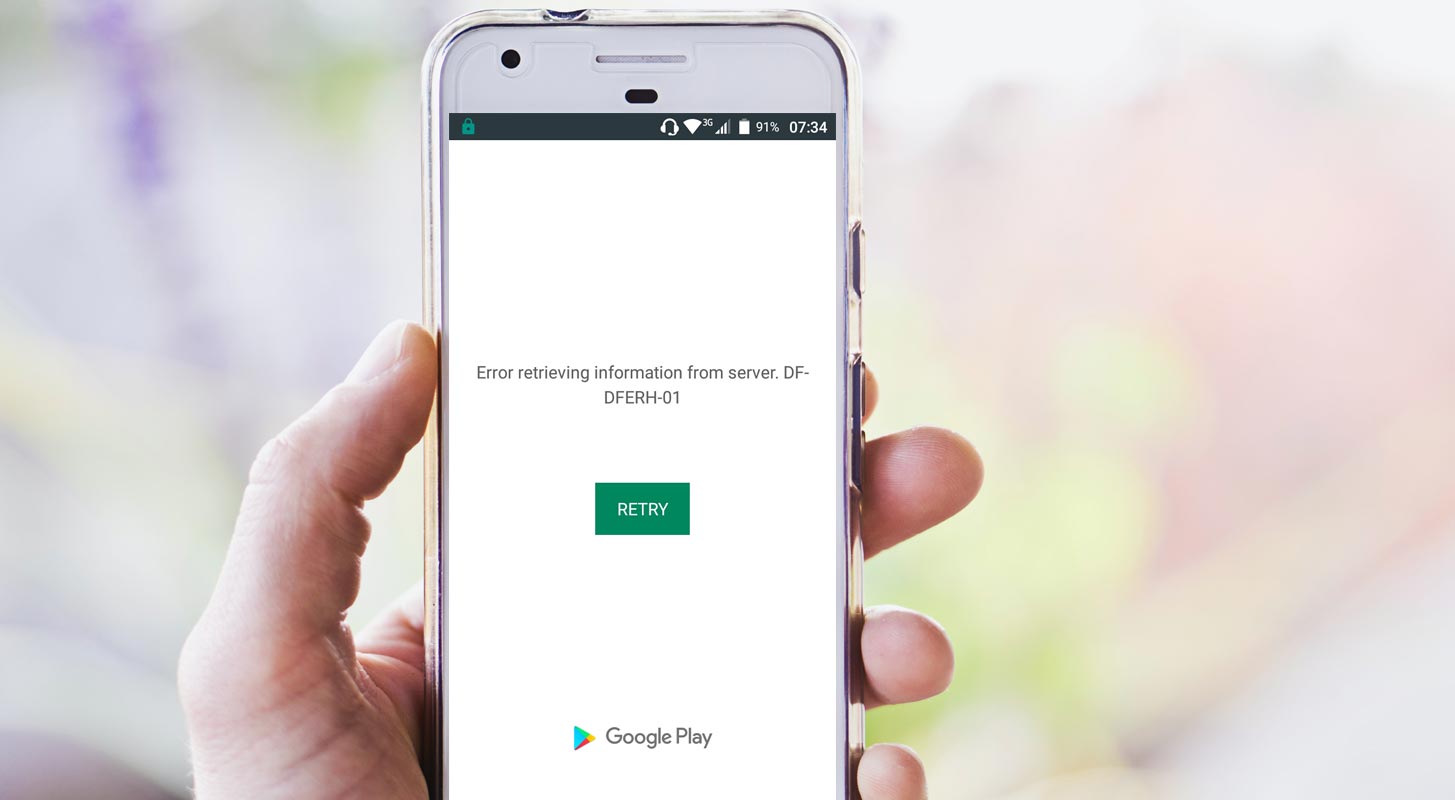
Many Android users have faced this error message – the “Unfortunately Google Play Services Stopped Working” error. This is caused by quite a lot of reasons – mainly insufficient storage space on the Android device. If you find out that most apps on your Android mobile won’t open, instead, they keep returning the Google services stopped error; there are pretty ways to get things fixed and enjoy your phone again.
This article explains the various causes of this error and how you can fix it with simple DIY troubleshooting techniques. We’d start with the reasons and then the fixes.

What Causes “Unfortunately Google Play Services Stopped Working” Error in Android Mobiles?
When you keep getting this error message, you need to check for these possible causes and fix them.
1. Low Storage Space
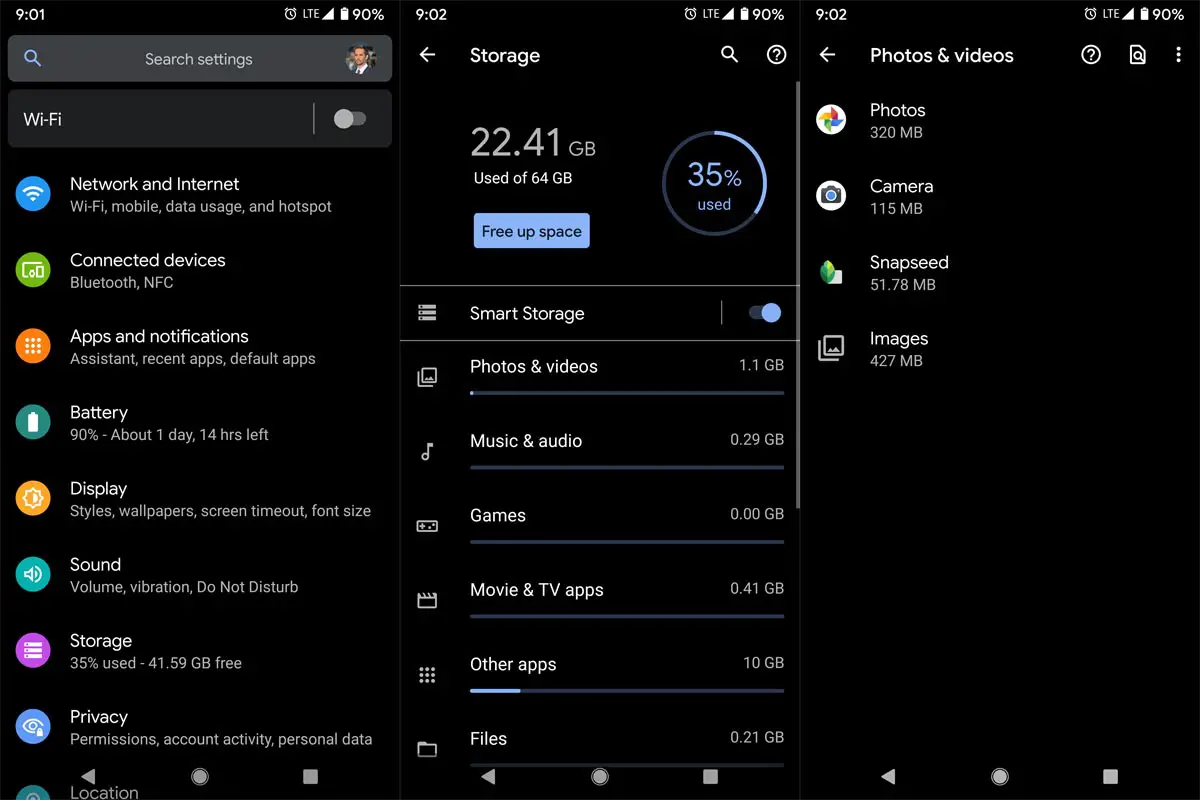
One of the most typical causes of this error message is insufficient space on the device. When you have low storage space – let’s say your device comes with 32 GB storage space and you’ve already used up to 31.5 GB – this error message is liable to appear on your device. Every app on your phone requires space to function and save “Cache” for each session.
2. App is Outdated
Yes, another possible cause of this error is the “Outdated” app. When the app you’re trying to open is not up to date, you may get this error message. This happens because, over time, app versions tend to have “bugs,” which are fixed in their newer versions. Hence, if you’re still using the old version of the app, the bugs might be the cause of the error message you’re seeing. Since Play Store can update itself, try to connect with the data connection, and open the app, It will automatically open after the update.
3. Google Play Services is Outdated
Asides from the app itself (the one you want to open) being outdated, if Google Play Services is not up to date on your device, it is possible to get this error message while opening your apps. Most apps installed from Google Play Store require Google Play Services to function. Mainly, this applies to older Android devices; on newer devices, Google Play Services automatically updates itself in the background.
How to Fix “Unfortunately Google Play Services Stopped Working” in Android Mobiles?
Now that we have mentioned the possible causes of this error message, how do we fix it? There are also a couple of ways to fix this error, and they are not advanced methods; they are simple techniques any Android device user can do.
1. Restart the Android Device
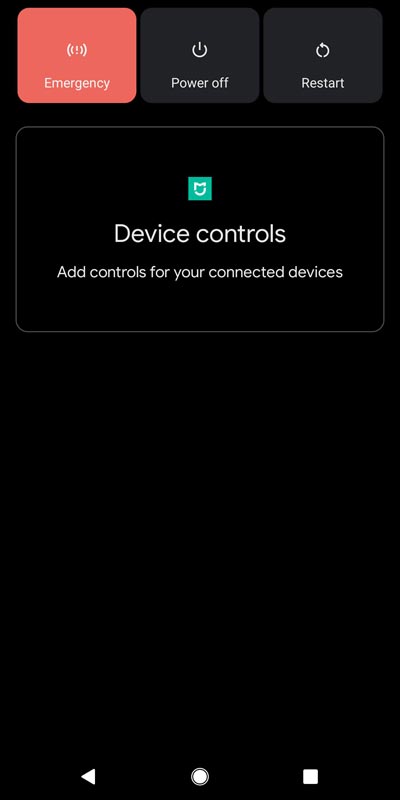
First things first, you need to restart the Android device – that’s the first trick. Many people don’t turn off their devices for weeks or even months. Even though that does not cause any damage to Android phones, when you start seeing this error, you should turn off the phone completely.
After you have turned off the phone completely, wait for some seconds or minutes, then turn it back on. This simple act would stop all ongoing background processes that have been eating up your phone memory, which may fix the error.
2. Clear Play Store App’s Cache Data
Every app on your Android phone stores Cache Data; these cache data are more like “Trash” files/data generated as you use the device. Depending on the app in question, caches may be necessary, but you need to clear it to fix this error message.
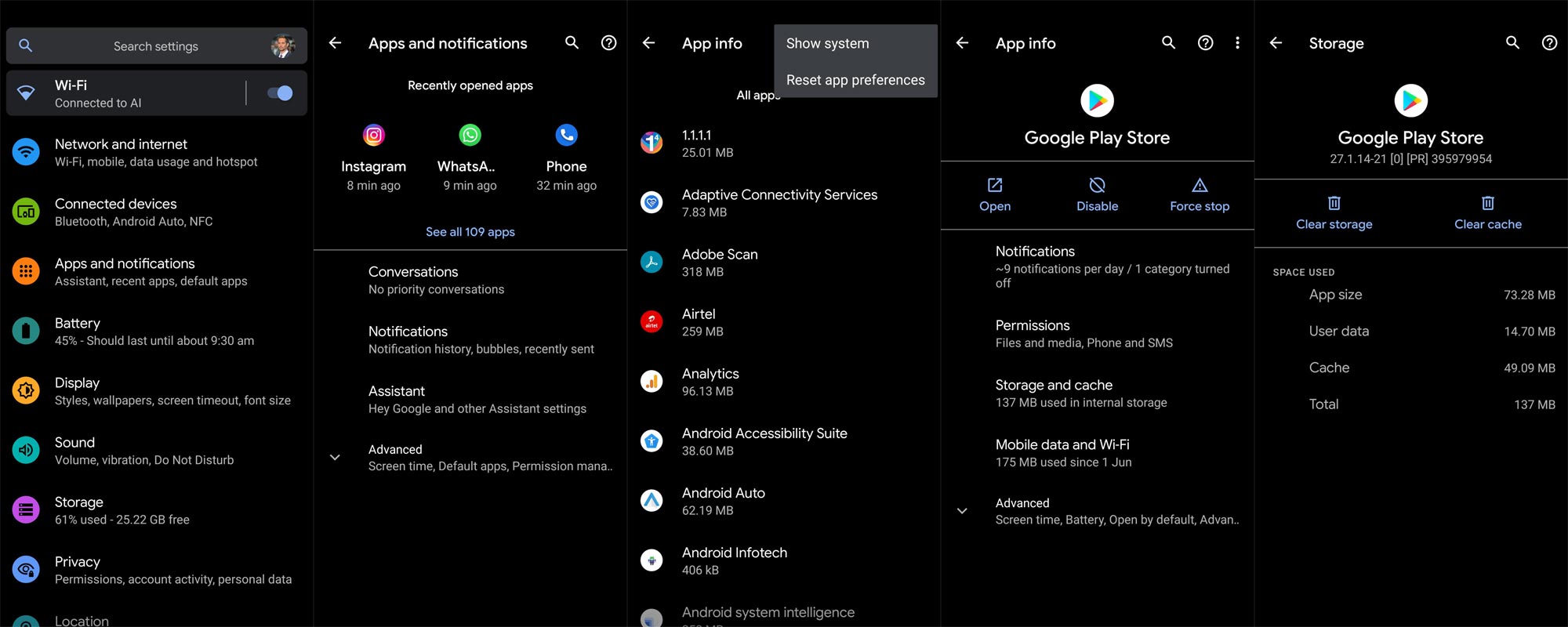
To clear the cache data of an app, you need to go to Settings >>> Apps >>> Find the particular app >>> Tap on it to open >>> go to the Storage option and select “Clear Cache.”
The steps to clear the cache data of your apps may differ from device to device; however, the “Clear Cache” option is always available in the “Storage” tab of any app when you access it from the Settings Page.
3. Update Google Play Services
As mentioned prior, outdated Google Play Services can cause this error to keep appearing on your device. So, to fix it, you need to update Play Services on your device.
In contrast, if Google Play Services is up to date on your device, then you should consider clearing the “Cache” data. Sometimes, the cache data is the culprit, or you may choose to “Uninstall Updates” to roll back to the old version. You may also set Google Play Services to update automatically.
4. Delete Unnecessary Apps and Files
Well, some Android users are fond of installing any app they see on PlayStore. These apps could take up a lot of space; thus, preventing the useful apps on your device from running smoothly due to insufficient space. Also, there may be many “Big Files” you need to delete to gain more freedom on your device.
You can start by uninstalling the unnecessary apps on your device and delete the old files on your device too. However, if you need the apps and files, you should consider getting more storage – maybe you should get a Memory Card to expand your device storage capacity.
5. Sideload Play Store App
Unfortunately, you cannot roll back apps to their old versions from Google Play Store; you can only download the old version from a trusted APK site and install it on your device. Many newer and old versions of the Play Store app versions still work perfectly and function as the more recent version; the significant difference is that you may not get the Chat feature on the old version you downloaded.
- You should not uninstall the old app. You can sideload the app, and it will replace the currently installed version.
- We will not lose any data during the installation. But it is a wise idea to backup your mobile before the process.
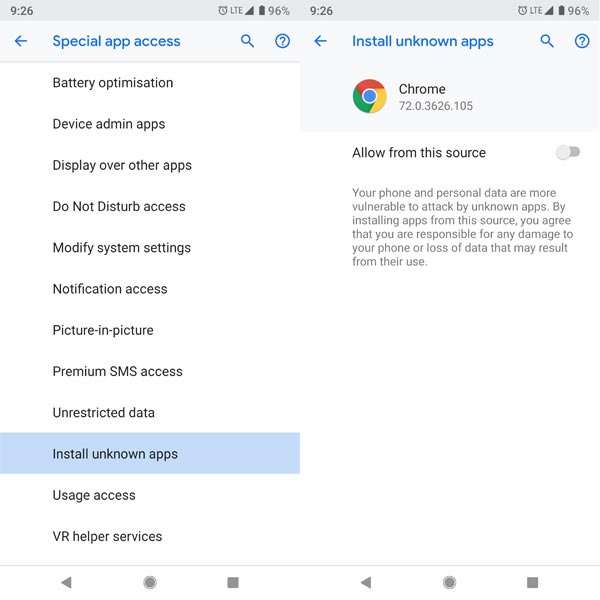
In my experience, I sideload the newer version from the APK Mirror, and it fixes my issue. Because it is near with the new UI, choose “no dpi Universal version”- Google Play Store 27.0.16-19 [0] [PR] 395771057 (nodpi).apk after the download goes to Settings to allow unknown sources installation. Replace the app.
6. Factory Reset The Phone
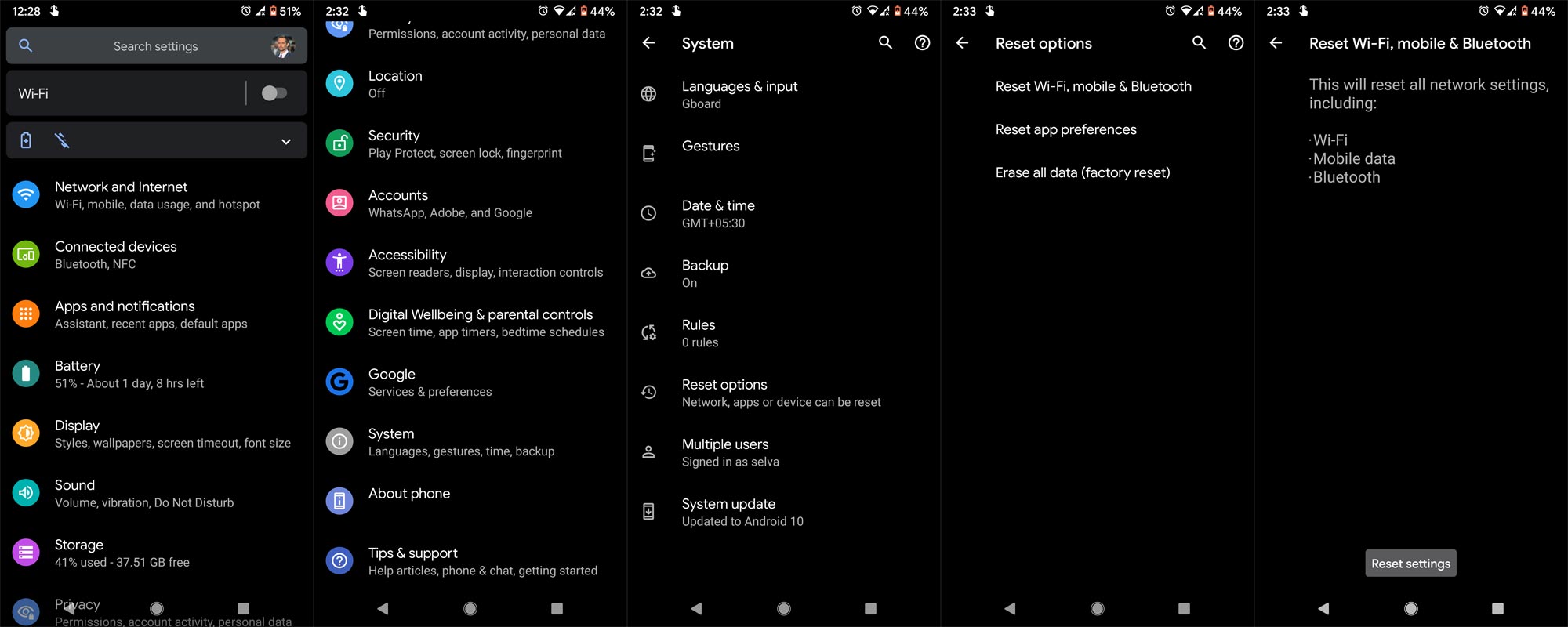
When you have tried all the troubleshooting steps above, and none seemed to solve the issue, you can resort to resetting the device. This will wipe out everything on the device and make it appear like a brand new Android device.
With this, you can carefully install the apps you need and save up more space. But, if the files and apps on the device are essential to you, you should back them up before running the factory reset. This is the final solution to fix this error, and it works for everyone.
Wrap Up
The “Unfortunately Google Play Services Stopped Working” error is mainly caused by insufficient space on the Android phone. Thus, you could fix the error by increasing the storage space (by clearing cache files or deleting unimportant files). But, if after all these, the said app couldn’t still open, maybe you should uninstall it and download the copy version from APK hosting sites (instead of the factory version Google Play Store). When you solved your issues using other methods, could you share them in the comments? It will help other people too.

Selva Ganesh is a Computer Science Engineer, Android Developer, and Tech Enthusiast. As the Chief Editor of this blog, he brings over 10 years of experience in Android development and professional blogging. He has completed multiple courses under the Google News Initiative, enhancing his expertise in digital journalism and content accuracy. Selva also manages Android Infotech, a globally recognized platform known for its practical, solution-focused articles that help users resolve Android-related issues.




Leave a Reply