
Enable Search in the Google My Pixel App- The Google Pixel ecosystem has long been celebrated for its streamlined user experience, delivering a clean interface completely free from the intrusive bloatware found on competing Android devices. While pre-installed applications are kept to an absolute minimum, the software Google does include serves a definitive purpose. Chief among these foundational tools is the My Pixel app, a comprehensive structural companion platform designed to serve as an all-in-one guide, support hub, and hardware catalog for Pixel owners.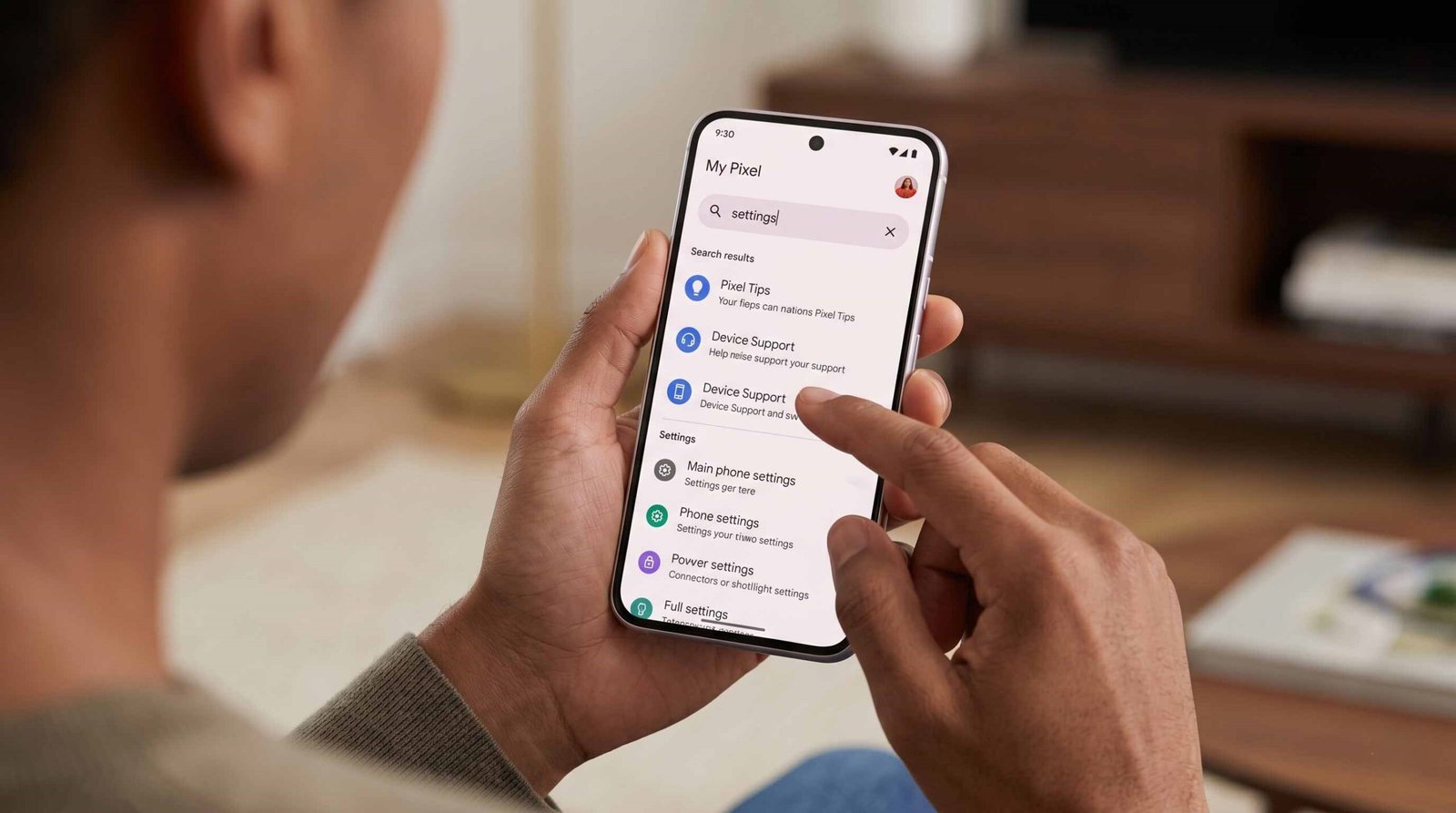
As the portfolio of device features expands with every subsequent update, navigating this vast repository has become increasingly difficult due to a glaring omission: the lack of a dedicated, native in-app search tool. Fortunately, deep technical analysis of recent app builds reveals that Google is actively implementing a native search utility under the development codename koda. We have built this definitive implementation guide to show you exactly how the My Pixel search feature functions, how to prepare your system for its rollout, and how to utilize advanced navigation strategies to locate deep settings instantly.

Understanding the Structure of My Pixel App
To appreciate why a native search interface is essential, we must map out the existing architecture of the My Pixel system application. The platform is structured into three primary structural pillars, each containing multiple sub-menus and deeply nested informational directories.
The Tips and Feature Onboarding Directory
This is the main instructional core of the application. It adapts dynamically to your specific hardware generation, detailing core functions such as:
- Advanced Gemini AI capabilities (including native processing modules like Nano Banana and context-aware writing tools).
- Computational photography suites like Camera Coach and Macro Focus.
- System optimization settings, including automated Pixel Drop updates and layout personalization tutorials.
The Diagnostic Support Hub
The second core pillar provides direct access to Google’s hardware repair ecosystem. It integrates built-in diagnostic test suites, automated troubleshooting scripts, and an interactive AI customer support agent to address hardware malfunctions or initiate official screen and battery repairs.
The Integrated Google Store Ecosystem
The third tab brings the entire desktop Google Store directly into the native mobile interface. Users can browse specific physical accessories, view order histories, track shipments, and purchase hardware upgrades like the Pixel Watch 4 or first-party protective phone cases.
Because these three massive domains operate under a single application envelope, discovering a specific guide or tracking an accessory order currently requires tedious category hopping. The upcoming search bar deployment aims to solve this discovery problem entirely.
How to Access the Hidden My Pixel Search Feature
The implementation of the in-app search tool is progressing through specialized software deployment phases. Because the underlying code is already present within current system packages, users can prepare for and trigger this advanced search utility using precise operational methodologies.
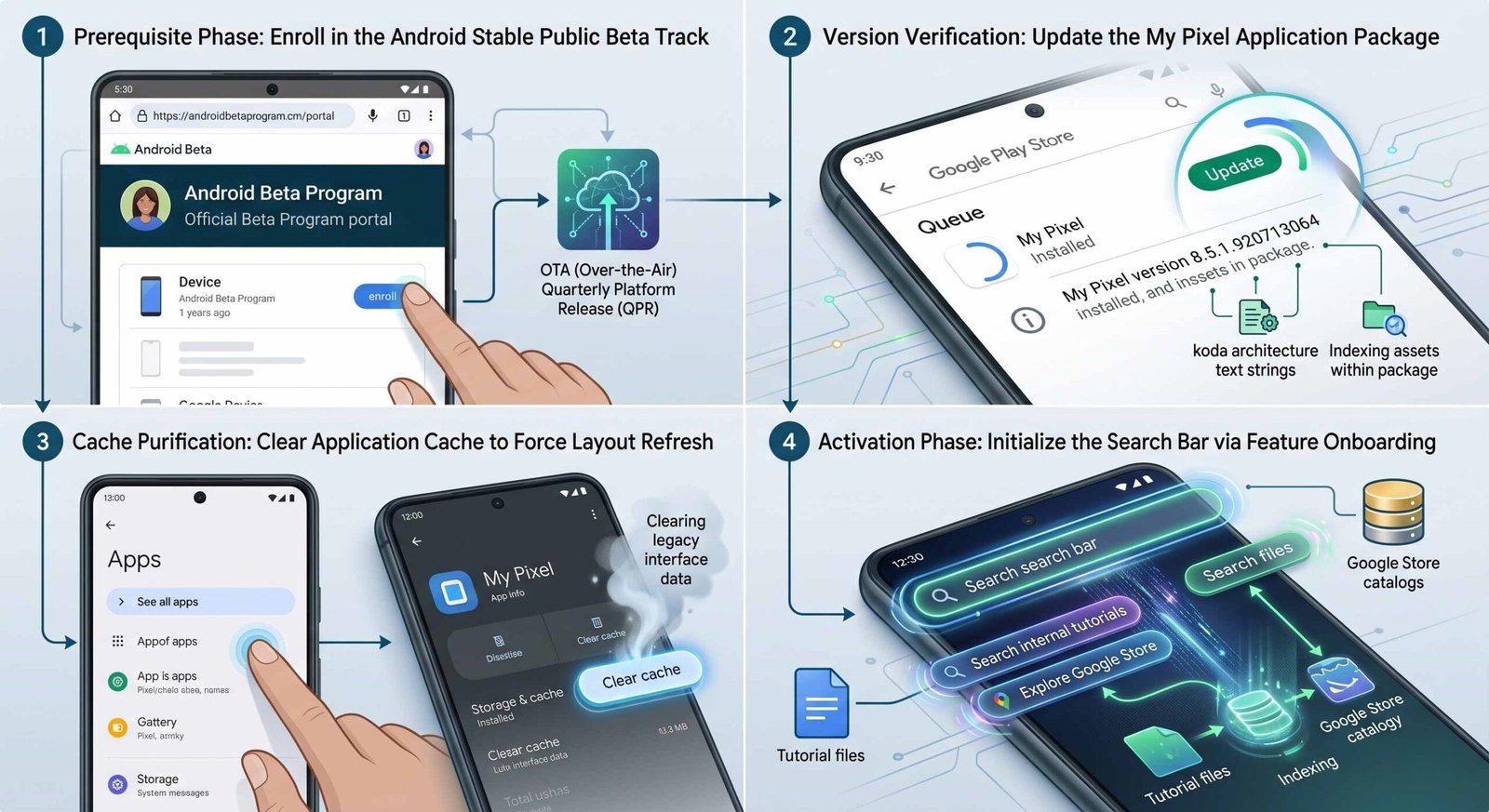
Step 1: Enroll in the Android Stable Public Beta Track (Prerequisite Phase). Open an authorized web browser and navigate to the official Android Beta Program portal. Authenticate using the primary Google Account linked to your Pixel hardware. Locate your eligible smartphone under the active device list and select the option to enroll. Your device will receive an automated, over-the-air system notification within 24 hours that deploys the latest Quarterly Platform Release (QPR) build.
Step 2: Update the My Pixel Application Package (Version Verification). Launch the Google Play Store on your smartphone, tap your profile icon, and navigate to “Manage apps & device.” Select the updates queue and force a manual refresh. You must ensure that your device has fetched and installed My Pixel version 8.5.1.920713064 or higher. This specific compilation contains the necessary Koda architecture text strings and indexing assets required to execute localized system searches.
Step 3: Clear Application Cache to Force Layout Refresh (Cache Purification). Open your primary system Settings application and navigate to the “Apps” section. Select “See all apps,” then locate the entry titled “My Pixel.” Tap on “Storage & cache” and execute a “Clear cache” command. This action purges legacy interface layouts from your local hardware storage, forcing the app to re-evaluate its asset initialization scripts upon the next launch cycle.
Step 4: Initialize the Search Bar via Feature Onboarding (Activation Phase). Relaunch the My Pixel app from your app drawer. Look closely at the top layout of the home screen interface. When the Koda framework triggers successfully, a prominent graphical search bar will appear at the top of the display. The system will present interactive onboarding chips, confirming that your platform is now indexing both internal tutorial files and external Google Store catalogs.
Maximizing the Koda Search Index
Once the search feature is fully active on your hardware, the input field utilizes an intelligent search index that cross-references local device documentation with cloud-based storefront inventories. To maximize the efficiency of your queries, you must understand how the indexing categories organize information.
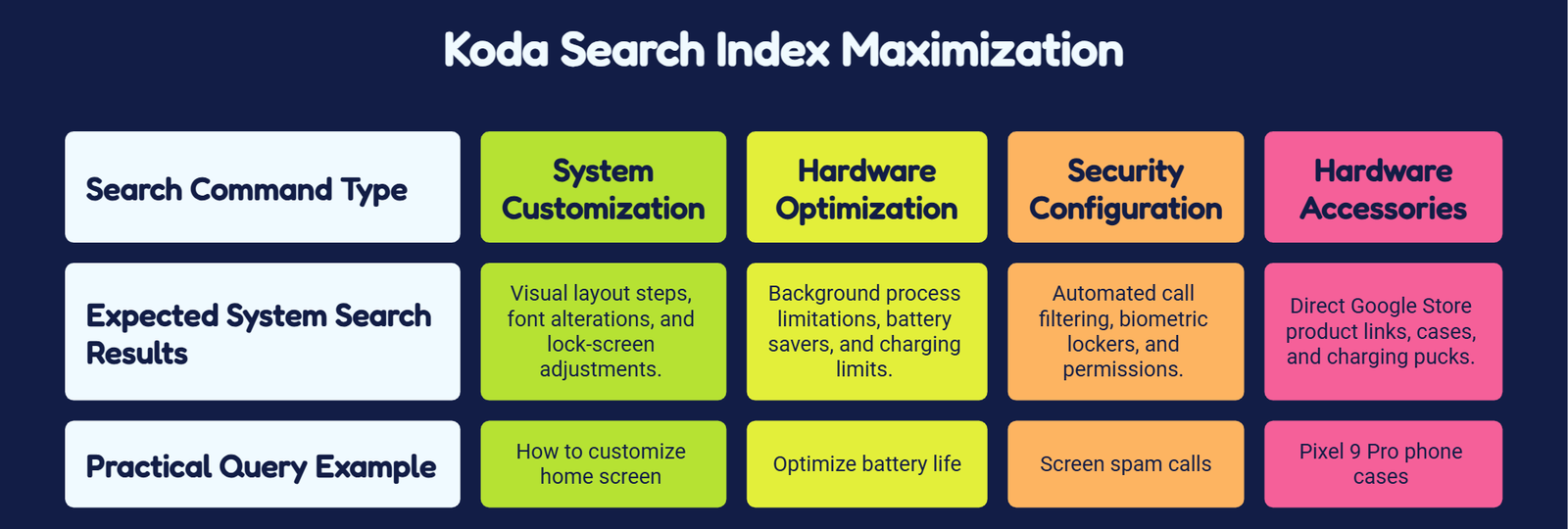
When a user inputs a query into the interface, the app assigns an automated relevance score to the data rows. If you enter a technical issue, the app prioritizes a diagnostic script from the Support directory over a retail listing from the Store ecosystem, minimizing the steps required to resolve an operational error.
Critical System Requirement: If your Pixel smartphone is currently running a developer preview or an unauthenticated third-party ROM, the My Pixel framework will automatically lock down its cloud connection, turning off the real-time store indexing feature to preserve data security. Always ensure your device remains on a public stable track or an official public beta release.
Alternative Navigation Strategies While Awaiting Rollout
If your specific carrier configuration or regional device variant has not yet received the server-side activation signal for the Koda search feature, you can bypass manual menu tracking by utilizing advanced system-wide shortcuts native to the Android operating system.
Deploying the Universal Pixel Launcher Search
The primary search bar located at the baseline of your Pixel home screen is a powerful global indexing engine. Swiping up to open your app drawer and typing a targeted keyword will parse deep inside your system settings. For example, typing “Camera Coach” into the global launcher search will frequently display a deep-link shortcut that bypasses the My Pixel app home page entirely, dropping you straight into the target documentation window.
Utilizing Google Assistant and Gemini Voice Overlays
Because the modern Pixel framework integrates deep Gemini capabilities, you can leverage voice-activated intent commands. Activating your assistant overlay via a prolonged power button press and stating, “Show me how to optimize battery life in My Pixel app,” triggers an automated programmatic intent handler. The assistant processes the semantic meaning of your request, opens the companion application, and auto-navigates directly to the specified power management tutorials.
Technical Specifications and Architecture
The underlying code mechanics behind the search bar reveal a complex data-parsing framework designed to operate with minimal power consumption. The app utilizes a localized SQLite database structure that caches the text of every device tutorial directly on the physical storage of your phone.
When a new Pixel Drop update occurs, a background synchronization script updates this internal database file. Because this text processing occurs entirely on-device, typing an instructional query requires zero active network bandwidth, delivering instantaneous results. Conversely, shopping queries dynamically open an authenticated, secure API gateway to the Google Store servers, parsing product availability and exclusive user discounts in real-time based on your authenticated account state.
FAQs
Can I completely turn off the search bar in the My Pixel app once it updates?
No. Unlike the universal home screen search widget, which can be altered via home settings, the My Pixel in-app search tool is a permanent component of the application’s user interface layout, designed to remain pinned to the top of the menu screen for immediate user access.
Why does my search bar only show store products and no device tips?
This symptom indicates a synchronization breakdown between your app configuration files and local storage. To fix this, navigate to your system app settings, clear both the data and cache for the My Pixel app, and ensure your smartphone is connected to a high-speed Wi-Fi network to re-download the localized instructional databases.
What is the development codename “koda” found in the application strings?
Codenames like koda are internal identifiers used by Google software engineers during feature development to organize source code assets. Once a feature undergoes successful beta evaluation and transitions to a public stable update, the codename references are masked by user-facing text like “Search in My Pixel.”
Does using the in-app search tool track my data or query history?
Queries related to device tips and system troubleshooting are kept completely private and processed locally on your hardware. However, search inquiries that interact directly with the Store tab are synchronized with your Google Profile to provide order tracking and custom accessory recommendations.
Will older Pixel models like the Pixel 6 or 7 receive the search bar upgrade?
Yes. Because the feature is integrated into the core architecture of the My Pixel system app distributed through the Google Play Store, any legacy Pixel device that currently supports the modern iteration of the app will receive the search upgrade regardless of hardware age.
What should I do if the search bar causes the My Pixel application to crash?
App crashes during search initialization generally indicate a conflict with legacy cache files. Navigate to Settings > Apps > My Pixel > Storage, then tap Clear Data. Restart your mobile device and relaunch the application to force a clean reconstruction of the search index.
Can I search for third-party applications using this specific search engine?
No. The scope of this utility is strictly limited to the Pixel ecosystem. It only indexes native hardware features, first-party Google support tutorials, and official hardware items listed on the Google Store platform.
How often does the search database update its feature documentation?
The internal text index updates concurrently with monthly security patches and quarterly Pixel Drop updates. Whenever your smartphone downloads a new system build, the app automatically runs an update script in the background to refresh its catalog.
Does the in-app search feature support voice-to-text dictation?
Yes. The search bar fully integrates with the Google Gboard microphone utility, allowing you to tap the input field and dictate your feature search queries aloud rather than typing them out manually.
Why does my search bar look different than the screenshots posted online?
Google frequently conducts server-side A/B layout testing on system apps. This means certain user groups may see distinct styling variations, such as pill-shaped input boundaries or varied placement of onboarding text chips, while the underlying search code remains identical.

Selva Ganesh is a Computer Science Engineer, Android Developer, and Tech Enthusiast. As the Chief Editor of this blog, he brings over 10 years of experience in Android development and professional blogging. He has completed multiple courses under the Google News Initiative, enhancing his expertise in digital journalism and content accuracy. Selva also manages Android Infotech, a globally recognized platform known for its practical, solution-focused articles that help users resolve Android-related issues.




Leave a Reply