
Over the past several years, digital wallet integrations have fundamentally transformed how users make purchases across mobile platforms. In our ongoing analysis of digital payment infrastructure, we have observed a massive migration toward unified peer-to-peer (P2P) financial platforms for everyday ecommerce transactions. Google Play’s decision to natively support Venmo as a direct payment method represents a major shift in digital checkout flexibility.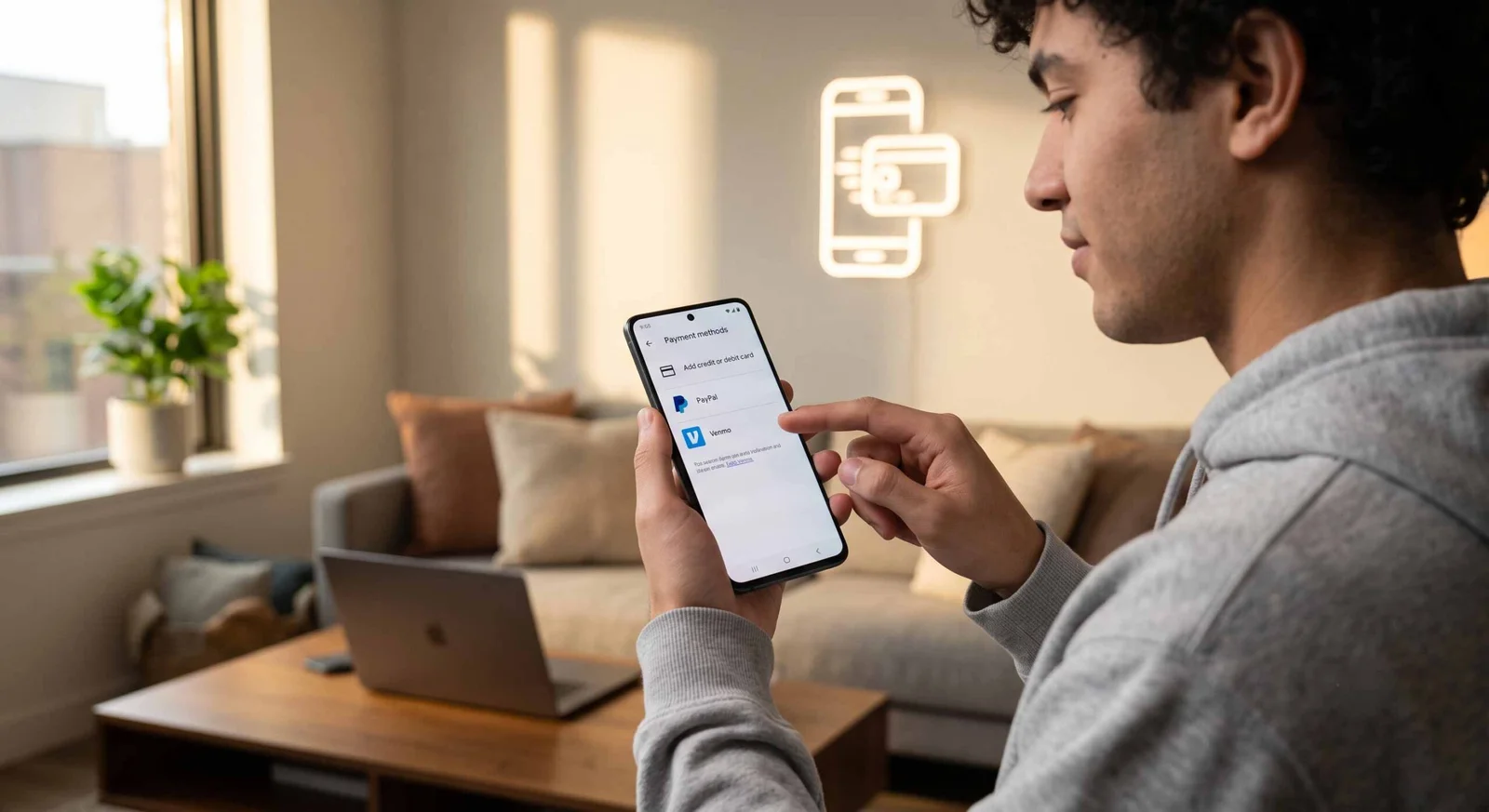
For years, Android users relied primarily on traditional credit cards, debit cards, direct carrier billing, or PayPal to complete purchases on digital storefronts. While Cash App was previously integrated into the platform, the addition of Venmo unlocks seamless payment capabilities for over 90 million active social commerce users. Whether purchasing premium productivity applications, renting movies, renewing digital subscriptions, or authorizing in-app purchases, utilizing your linked Venmo account streamlines transactions without requiring you to enter your card details on new storefronts.
In this exhaustive operational guide, we walk through the step-by-step procedure for linking your Venmo account to the Google Play Store, detail the underlying technical requirements, address regional restrictions, evaluate funding-source behavior, and troubleshoot common authorization bottlenecks.
Prerequisites and Account Readiness Verification
Before attempting to configure Venmo inside your Google account payment settings, specific operational prerequisites must be satisfied to ensure seamless OAuth authentication and token exchange. During our practical testing across multiple active Android devices, we identified four critical criteria that determine whether the authorization process succeeds on the first attempt.
1. Account Identity and Geographical Restrictions
Venmo operates exclusively within the United States financial regulatory framework. Consequently, both your Google Play region and your Venmo profile must be set to the United States. Your registered billing profile and IP profile history determine your Google Play location. If your Play Store region is set to Europe, Canada, or Asia, the Venmo option will not appear in your payment methods list.
2. Device Application Versions
To prevent API token handshaking failures between application sandboxes, ensure both the Google Play Store app and the official Venmo app are updated to their latest stable releases via the Play Store. Outdated build numbers can cause deep-link redirect loops during account authorization.
3. Identity Verification (KYC Compliance)
Under federal banking guidelines, Venmo requires Identity Verification for accounts that use stored-balance funds or issue direct payments. We recommend verifying your legal name, date of birth, Social Security number, and physical residential address in the Venmo settings menu before initiating integration with Google Play. Unverified accounts frequently encounter soft declines during initial API micro-authorizations.
4. Active Funding Backup Configurations
While Google Play allows charging to your available Venmo balance, transactions exceeding that balance require an authorized secondary funding source, such as a linked bank account, Venmo Debit Card, or personal debit card. Confirm that your Venmo payment preferences have a primary backup established.
Step-by-Step Guide: Linking Venmo via the Google Play Store App
We systematically verified the account pairing flow on Android 13, 14, and 15 operating system builds to document the exact user journey. Follow these precise instructions to complete your integration directly from your smartphone or tablet.
Step 1: Access Payment Settings in the Play Store
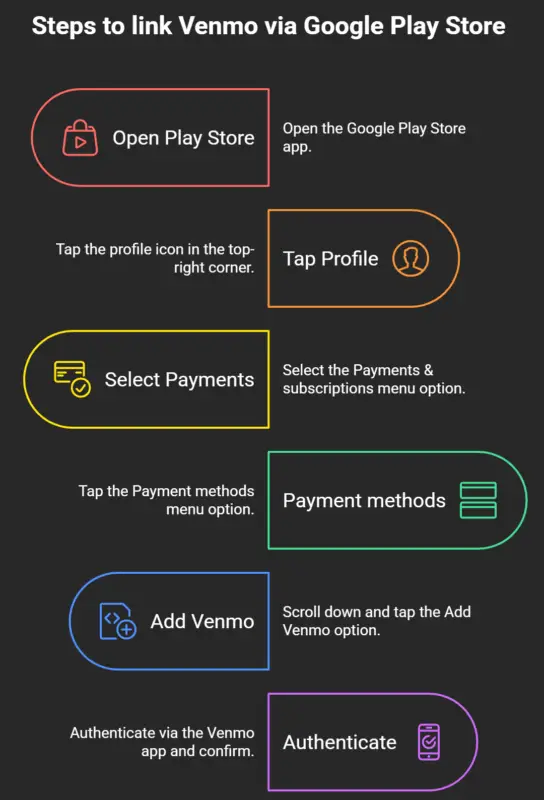
Launch the Google Play Store on your Android device. Ensure you are signed into the primary Google Account you intend to use for application purchases and subscriptions. Tap your account profile icon located at the top-right corner of the interface. From the slide-out navigation menu, select Payments & subscriptions, then tap Payment methods.
Step 2: Initiate the Venmo Addition Procedure
Within the Payment Methods control panel, you will view your currently linked payment profiles (such as stored credit cards, PayPal, or Google Play balance). Scroll down to the Add payment method section. You will see a dedicated listing titled Add Venmo. Tap this menu item to trigger Google Play’s external credential authorization request.
Step 3: OAuth Authentication and Deep-Link Handoff
Once tapped, the Android OS executes a secure deep-link handoff that automatically redirects you to the Venmo application. If your device uses biometric security (Fingerprint, Face Unlock, or PIN), authenticate to unlock the Venmo application. An authorization screen titled Google Payment Linking will appear, displaying permissions requested by Google, such as authorization to process recurring subscription billings and immediate purchases.
Step 4: Confirming Payment Preference and Authorization
Review the funding hierarchy listed on the Venmo approval screen. You may specify whether Venmo prioritizes your Venmo balance or defaults directly to a linked bank or card for Google transactions. Tap Authorize and Agree at the bottom of the interface.
Upon completion, the system automatically redirects you back to the Google Play Store interface. You will now see Venmo listed under your primary active payment methods.
Step-by-Step Guide: Adding Venmo via Desktop Web Browser
If you manage your digital applications, Google One storage, or YouTube subscriptions through a computer browser, you can configure Venmo directly through the Google Payments Center.
- Navigate to the Store Portal: Open your preferred browser and visit play.google.com or payments.google.com.
- Account Sign-In: Authenticate using your primary Google credentials.
- Open Payment Methods: Click on your profile avatar in the top right corner and select Payments & Subscriptions.
- Add Payment Method: Click the Payment methods tab, then select Add a payment method.
- Select Venmo: From the modal pop-up menu, choose Add Venmo.
- QR Code Scanning / Web Login: A secure dialog box will render a dynamic QR code alongside a web login portal. Open the Venmo app on your mobile device, scan the on-screen QR code using the built-in scanner, and tap Authorize on your phone screen to complete web authorization.
How Venmo Funding Sources Function on Google Play?
Understanding how money flows from your financial institution to Google Play when using Venmo is essential for preventing payment rejections and unexpected overdraft charges.
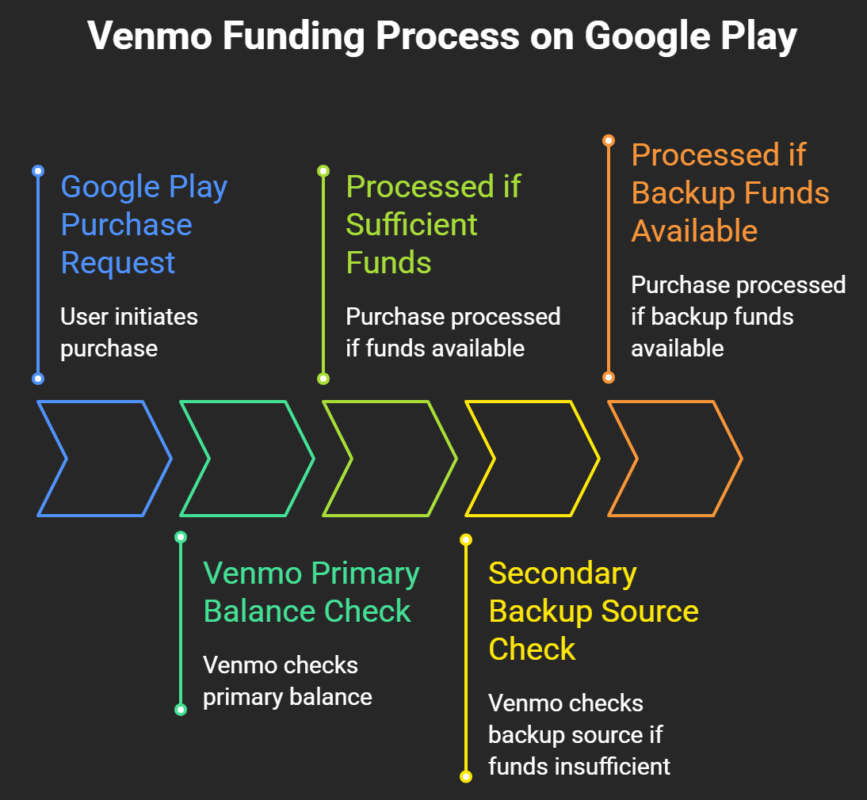
When you authorize a transaction on Google Play using Venmo, the system processes the charge according to your predetermined Venmo Payment Preferences:
- Primary Stored Balance: If you maintain an active balance inside your Venmo account and have completed identity verification, Google Play will draw directly from these funds first.
- Automatic Backup Funding: In scenarios where your purchase price exceeds your available Venmo balance, Venmo automatically triggers a split charge or draws the remaining full balance directly from your linked primary bank account, debit card, or Venmo Credit Card.
- Subscription Billing Mechanics: When setting up recurring payments—such as YouTube Premium, Google One storage expansions, or in-app game passes—Venmo acts as a continuous billing token. If your Venmo account runs out of funds and has no valid secondary payment method, Google Play will automatically notify you of a billing failure and suspend your subscription privileges after a grace period.
Managing and Setting Venmo as the Default Payment Method
Once linked successfully, you may set Venmo as your primary billing choice for all immediate 1-tap buy actions across Android applications and in-app storefronts.
Establishing Primary Default Status
- Open the Google Play Store.
- Tap Profile Icon > Payments & subscriptions > Payment methods.
- Navigate to Payment settings or Edit payment methods.
- Drag or select Venmo as your primary preference at checkout.
Assigning Venmo as a Backup Payment Method
Google Play supports configuring backup payment methods to ensure uninterrupted access to active subscriptions if your credit card expires or is declined.
- Go to Payments & subscriptions > Subscriptions.
- Click Manage alongside any active digital subscription.
- Select Add Backup Payment Method.
- Choose Venmo from your available accounts list.
Technical Troubleshooting for Venmo Integration Failures
Through extensive testing, we have categorized the most common error messages encountered when linking to Venmo or attempting transactions on Google Play, along with verified solutions.
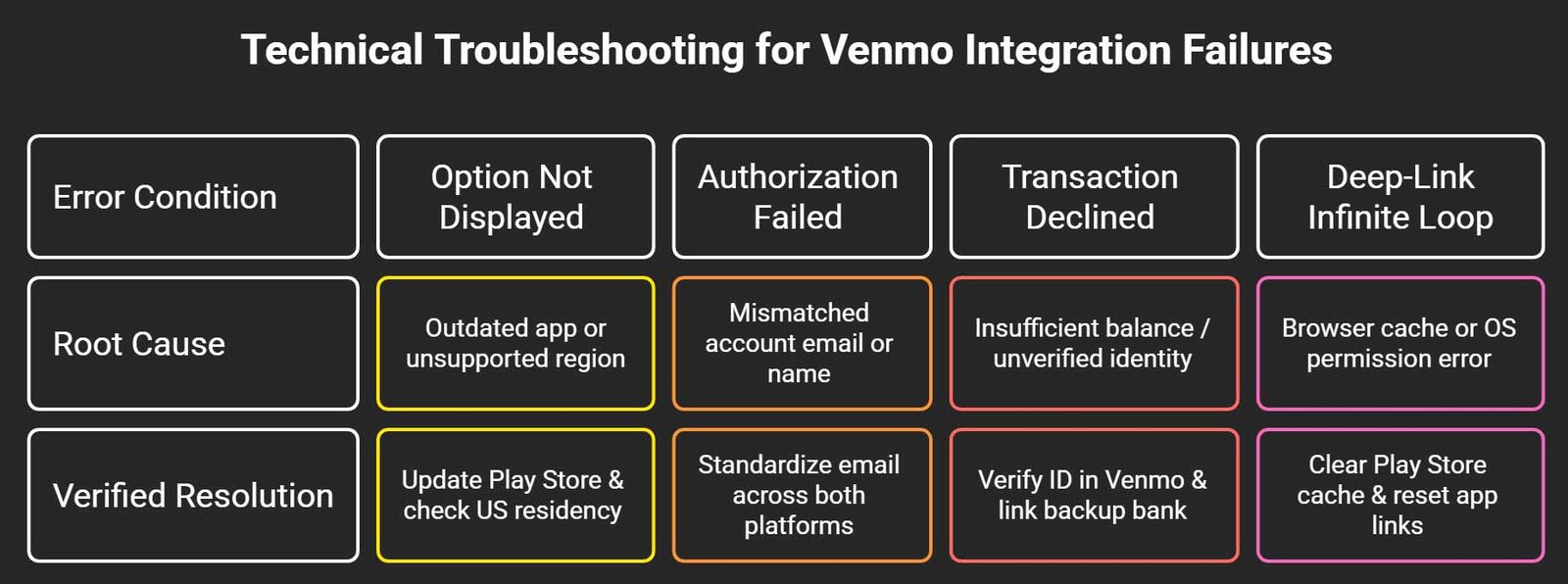
Issue 1: “Add Venmo” Option Missing Entirely
If you do not see the option to add Venmo inside payment settings:
- Check Country/Region Profile: Navigate to Google Play Settings > General > Account and device preferences. Confirm that your country profile is assigned to the United States. If you recently changed regions, Google enforces a 360-day cooldown before you can modify regions again.
- Disable Active VPN Services: Virtual Private Networks (VPNs) masking your local IP address can trigger region-mismatch safeguards in the Google Play Store backend. Turn off active VPN apps and force-close the Play Store before checking again.
Issue 2: Deep-Link Loop During Authorization
If clicking “Add Venmo” continually refreshes the screen or reopens your web browser without establishing an OAuth handshake:
- Open your Android Settings app.
- Go to Apps > See all apps > Venmo.
- Tap Open by default and verify that Open supported links is toggled On.
- Go back to Apps > Google Play Store > Storage & cache, then select Clear Cache.
Issue 3: Micro-Authorization Transaction Declines
When linking a new payment source, Google Play issues a nominal $1.00 temporary authorization hold to verify financial legitimacy. If your Venmo account has less than $1.00 in available balance and no active debit/bank account linked, this authorization will fail instantly. Ensure your Venmo balance has at least $1.00 or link a verified bank card before setup.
Security, Encryption, and Data Privacy Safeguards
When combining financial platforms, security and data privacy are paramount. Integrating Venmo with Google Play provides several distinct protective mechanisms:
- Tokenized Transactions: Google Play never directly stores or accesses your raw bank account details or full debit card numbers associated with your Venmo profile. All authorization occurs via encrypted OAuth 2.0 security tokens.
- Zero Card Exposure: Using Venmo prevents your physical debit or credit card credentials from being stored on third-party Android app developers’ servers, significantly reducing risk during merchant database breaches.
- Instant Push Notifications: Every transaction authorized via Google Play generates immediate push notifications from both the Google Play Store and the Venmo app, allowing you to identify and report unauthorized activity immediately.
- Multi-Factor Biometric Verification: Purchases made on Android can be configured to require mandatory Fingerprint Unlock, Face Authentication, or password entry before executing transactions against your Venmo account.
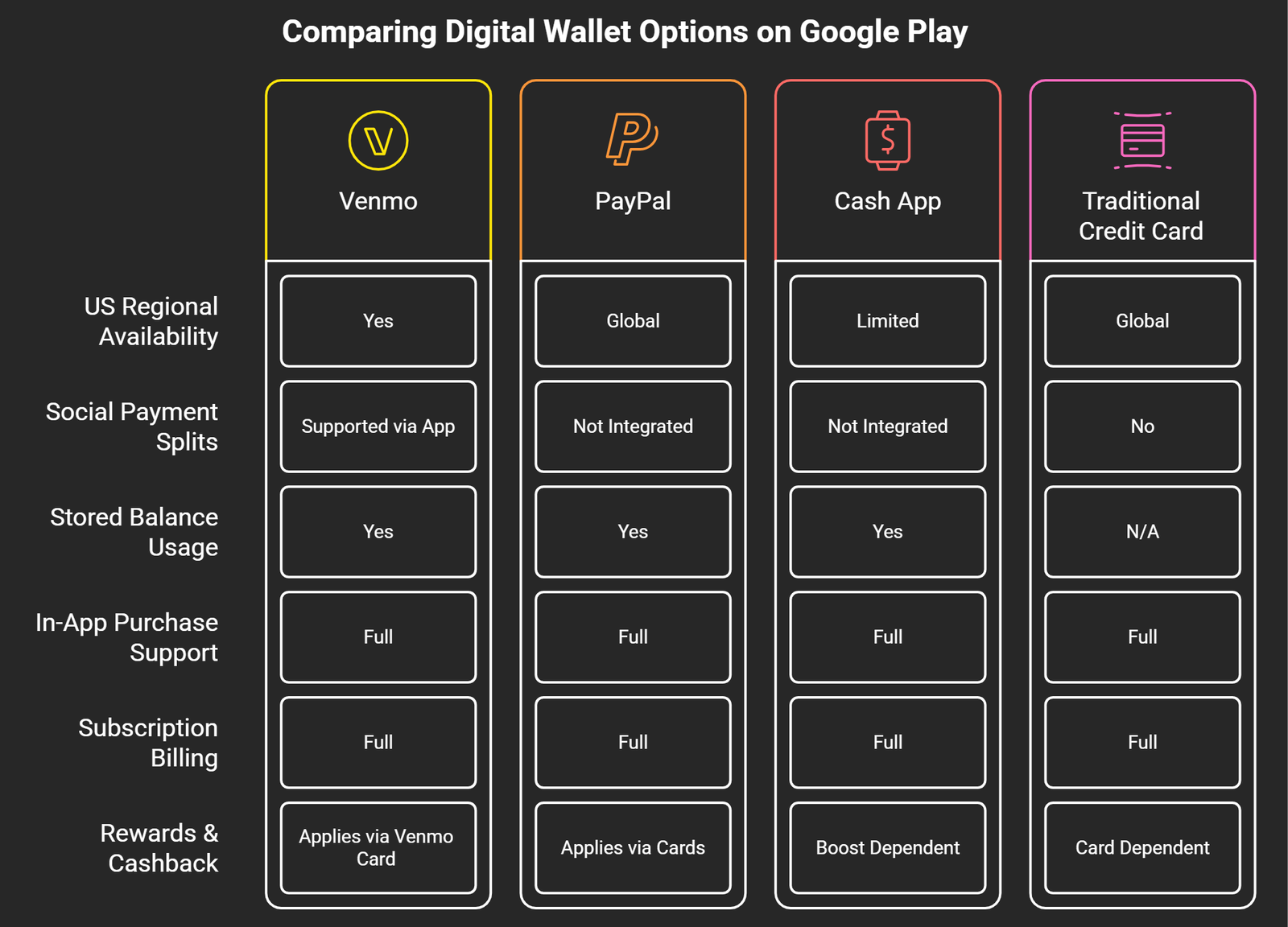
Comparing Digital Wallet Options on Google Play
To help you decide whether Venmo is the optimal payment method for your software purchases, we have created a comparison matrix evaluating the digital wallets supported on Google Play.
Frequently Asked Questions (FAQs)
1. Is there any additional transaction fee for using Venmo on Google Play?
No. Neither Google Play nor Venmo imposes additional checkout processing fees when purchasing applications, games, or subscriptions using your stored Venmo balance, linked bank account, or debit card. Standard credit card processing fees inside Venmo only apply if you explicitly route non-qualified credit card funding through your account.
2. Can I use Venmo on Google Play outside the United States?
No. Venmo services and financial clearing mechanisms are restricted to residents of the United States. Both your Google Play billing country profile and your Venmo account registration must reflect valid US details.
3. Will purchases made on Google Play show up on my public Venmo feed?
No. Transactions executed on Google Play through Venmo are treated as private commercial checkout operations. They will not broadcast to your social contacts or to your public social feed within the Venmo app.
4. How do refunds work when returning an app bought via Venmo?
If you request an app or in-app purchase refund through the standard Google Play refund portal within the allowed timeframe, approved refunds are returned directly to your original Venmo account balance or underlying funding source.
5. Can I use a Venmo Teen Account on Google Play?
Yes, provided the Venmo Teen Debit Card or an authorized Teen Account allows commercial digital merchant checkouts under parent/guardian supervision guidelines.
6. Can I split Google Play purchases with friends using Venmo?
While Google Play processes the transaction as a single charge, you can open the Venmo app immediately afterward to request split payments from friends or family members for shared subscriptions or group purchases.
7. Why is Venmo not showing up in my Google Play payment options?
This usually occurs if your Google Play Store app is outdated, your Google billing country profile is set to a country outside the US, an active VPN is masking your region, or your device lacks the official Venmo app.
8. Does Google Play support the Venmo Credit Card?
Yes. You can link the physical or virtual Venmo Credit Card directly as a standard credit card payment option or route charges through the linked Venmo account interface.
9. Can I pay for recurring subscriptions like YouTube Premium with Venmo?
Yes. Venmo fully supports recurring digital billing tokens. You can designate Venmo as the primary or backup billing source for subscriptions managed inside your Google account.
10. Is Venmo safer than saving my credit card directly on Google Play?
Using Venmo adds a layer of tokenized privacy because Google Play processes charges through token exchange rather than storing raw card credentials, minimizing financial exposure across third-party application channels.

Selva Ganesh is a Computer Science Engineer, Android Developer, and Tech Enthusiast. As the Chief Editor of this blog, he brings over 10 years of experience in Android development and professional blogging. He has completed multiple courses under the Google News Initiative, enhancing his expertise in digital journalism and content accuracy. Selva also manages Android Infotech, a globally recognized platform known for its practical, solution-focused articles that help users resolve Android-related issues.




Leave a Reply