
Getting anonymous calls from marketing can happen. If you opted in one shopping or finance sector, most of the time, they share the number among them. The Result is you always getting calls for shopping-related and finance related. In the beginning, we answer these calls. But later, the various calling makes us uncomfortable. So, It is wise to ask the person to unlist our number politely. But, Most of the Telecallers don’t do that. If you face this situation, you can block those phone numbers. One of the reasons to love Android OS is because the OS is very much flexible, and it allows you to do a lot of things. Well, today, we are going to show you the ways to block phone numbers on Android mobile phones. 
However, some of these methods require that your smartphone is running on Android 6.0 version or any other newer version. Nevertheless, if you have an old Android mobile, we will also show how to can do this. Firstly, we would share how you can achieve this using the default Android Phone app on your smartphone. There’s a blocking feature on your device, and here’s how to activate it.
Block Phone Numbers on Android Mobile using Different methods
First Method: Using the default “Phone” app
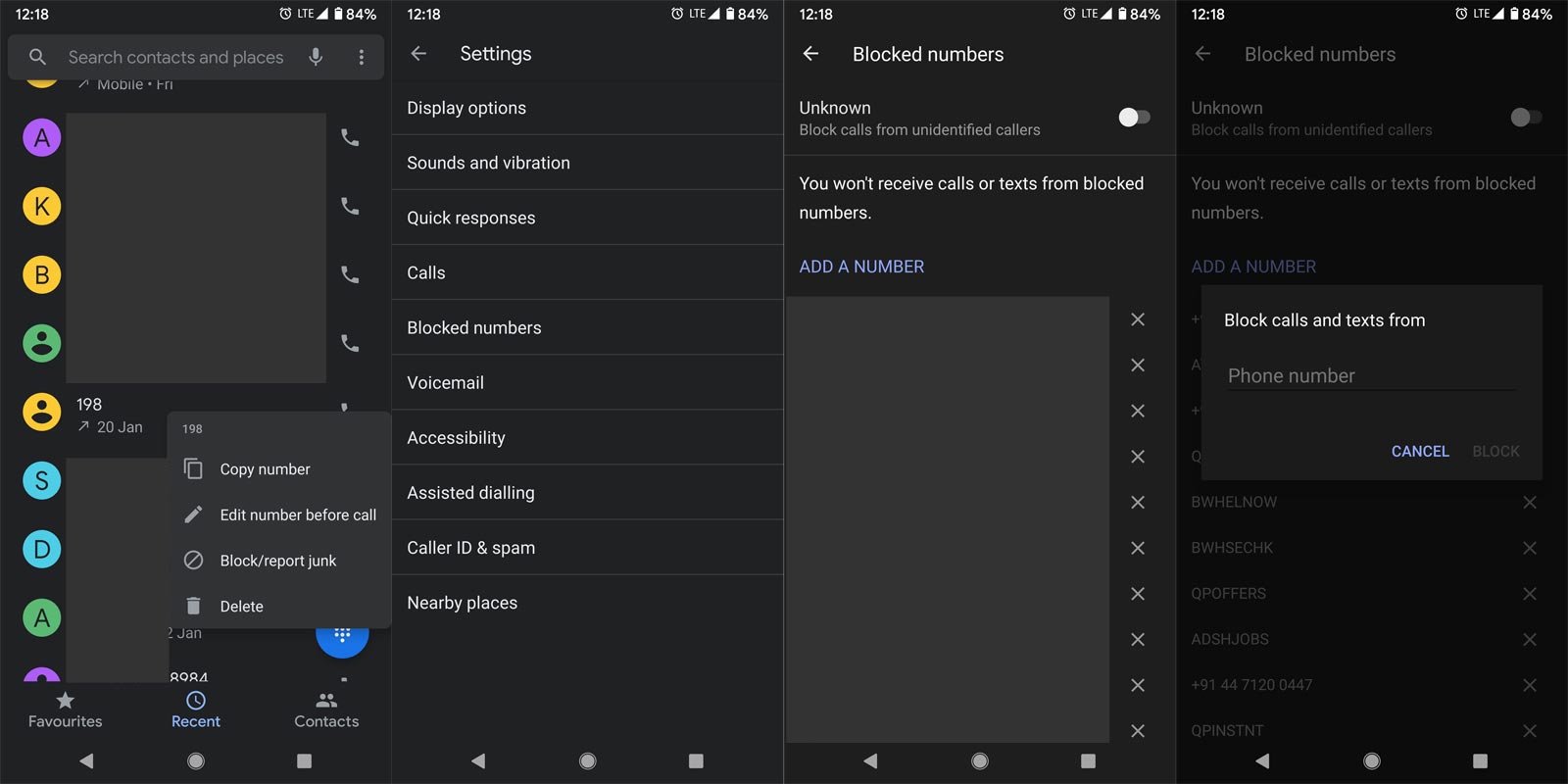

- Launch the preinstalled phone app on your smartphone.
- Tap the “More” button at the top-right corner and navigate to “Call History.”
- Press and hold the number you want to block and select “Block / Report Spam.”
- Or, you can click on the “More” options and navigate to “Settings.”
- Select “Call Blocking.”
- Then add the contacts you want to block to your “Blocking List.”
This simple method above is the simplest way to block any saved or unknown on your Android mobile device. You can use this method to block calls from SPs and various other unknown numbers that are disturbing your line. The above process and UI are the same for Stock Android mobiles such as Nexus and Pixel devices. It will also work on Android one mobiles. For other Manufacturers UI, you can refer below.
Explaining further
The “Phone” app is also seen as “Dialer” on most Android mobile. It is merely the default app available on your Android device for making calls. Below is a detailed explanation of the steps discussed above. However, kindly note that this method works differently on various devices. Some smartphones may not show you the “Blocking” feature on your “Phone” or “Dialer” settings. For such smartphones, you may need a 3rd-party application to block numbers or mark them as SPAM.
Blocking a number means that whenever someone tries to contact you with that particular number, the call won’t go through. It is advisable to only avoid phone numbers from pestering Tele callers or people you don’t want to hear from anymore (e.g., Exes).
Second Method: You can block a number from the “Messages” app
Interestingly, you can also block numbers from the stock android “Messages” app. It will also work similarly to the “Dialer” method. Using this method, you can block calls and messages from any number (whether private or SP numbers).
We even believe it is simpler to use the “Messages” app to block numbers because it looks more straightforward.
Steps
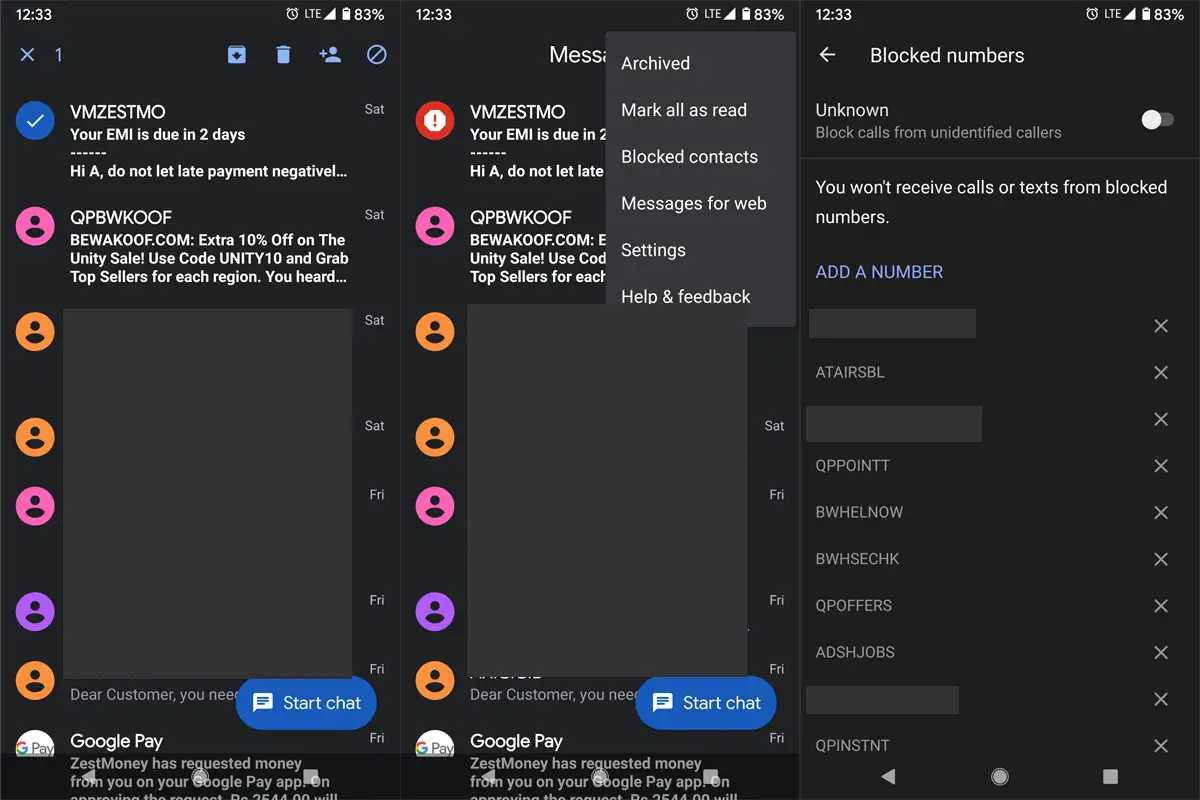
- Tap and hold on the Number or the message Sender’s name to select the message
- Look to the top menu bar, and you’d see a new “Blocking” icon
- Click on the “Blocking” icon to bar number from contacting you
- You will receive the option to report the mobile phone number as “SPAM,” you can choose to block the number and not report it as SPAM or block a mobile number and also report it as SPAM.
- Tap “OK” to block the line.
You can block the Senders with no mobile numbers. If you use Google’s messages app, It can manage those messages automatically. Also, It supports RCS Messaging. It is like an iMessage for Android.
Blocking Mobile phone numbers on specific devices
On different smartphones from different brands, how to block phone numbers may differ. For example, Samsung adds a flexible phone number blocking feature on its smartphones, so also Huawei and LG.
How to block a number on Samsung smartphones?
Due to the Custom skin Android OS, Samsung using this feature way back from KitKat version. Compare with other manufacturers, Samsung provides the Bock feature in feature phones also. Even if your device is old, Samsung Blocking numbers working great on all devices. But, When you need filters to exclude some specific numbers, you can try third-party apps from the below section. When you receive Push Ads form the Bloatware, you can disable Samsung bloatware apps using the ADB method.
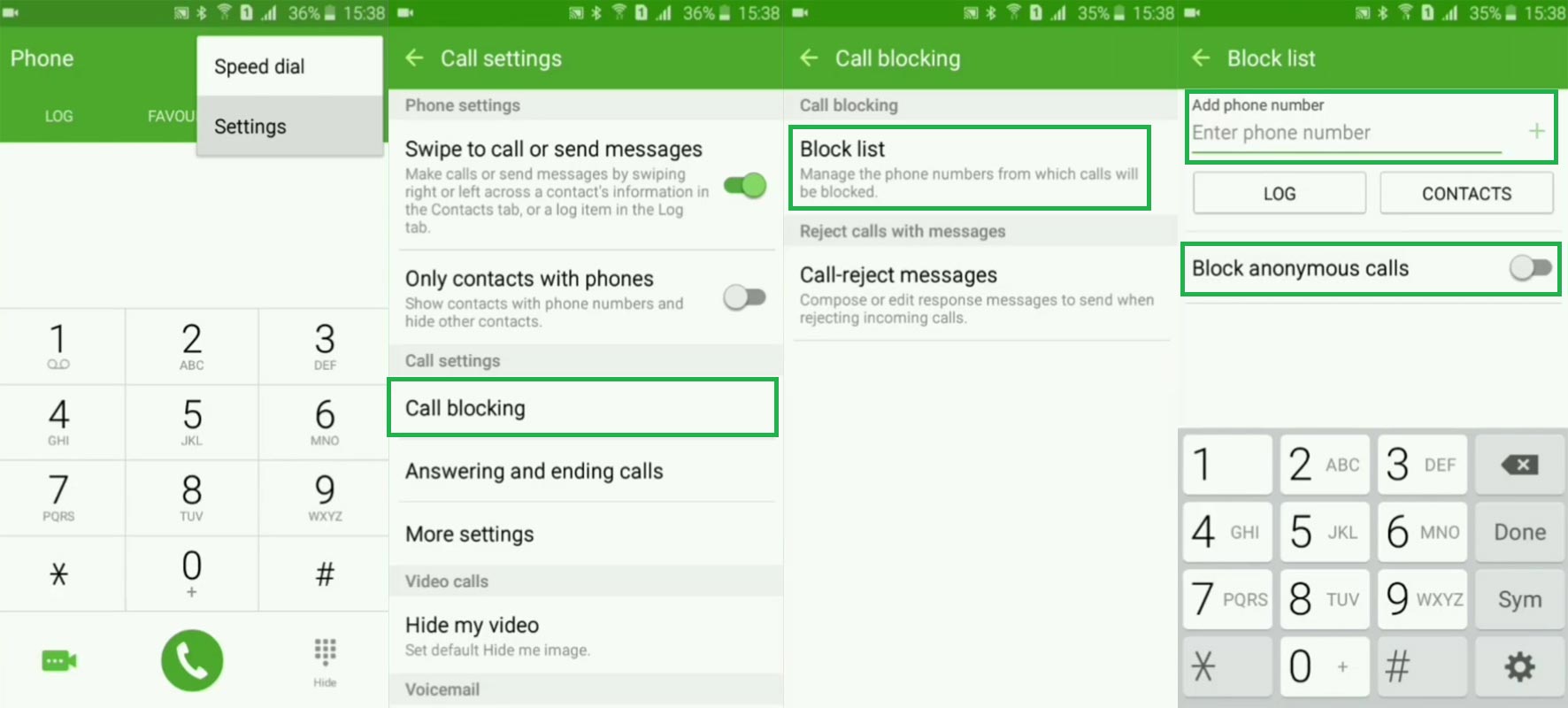
- Open your “Phone” or “Dialer” app and navigation to “logs.”
- Click on the “More” options icon and go to “Call Settings.”
- Select “Call Blocking”
- You can activate “Block Anonymous calls” or manually add numbers to your Call Rejection list.
Any phone number added to this list won’t be able to contact you anymore.
Note: On some Samsung smartphones, it is called as “Call Rejection” and not “Call Blocking.”
HTC and LG smartphones
If you have LG and HTC mobiles, you can use the default blocking method. They can better handle the situations compare with third-party apps. Also, they have a lot of filters to block multiple numbers with simple rules.
Steps
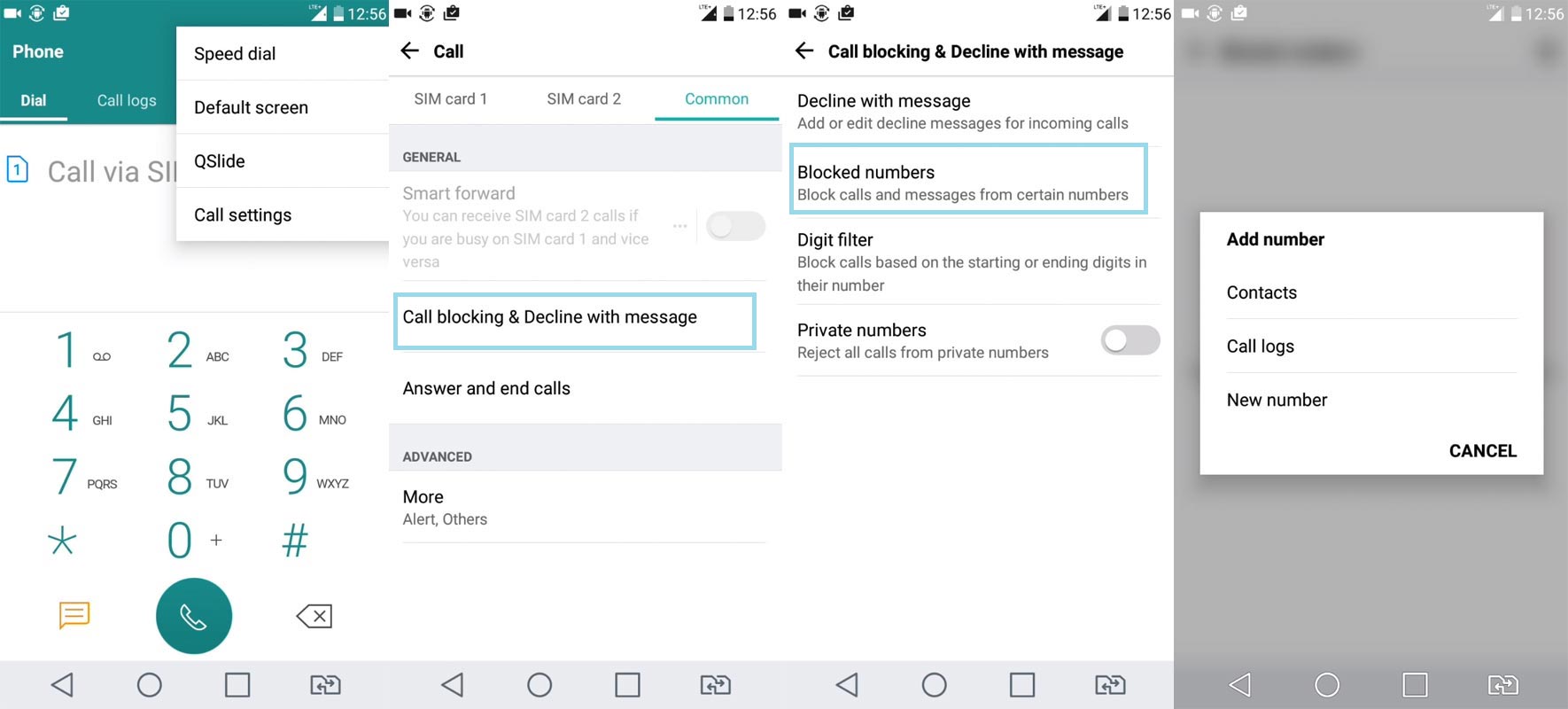
- Launch your “Phone Dialer” app
- Long press on the number you want to block
- Select on the “Blocking” icon on the top panel or click on “More” options, then select Block Number
- You can also set up blocks using this method. Open the caller app> Three dot icon menu> Settings> Call Blocking& Decline message.
LG and HTC have another additional feature that you can bock the numbers using number patterns. If it matches the number “starting with” or “ending with,” you can block those numbers also using Digit filter feature.
Block Phone numbers on OnePlus smartphones
OnePlus mobiles are near Stock Android with some additional features. So, the options and features that are available in the Stock Android phones and are also available in the OnePlus mobiles. The options are moreover the same.
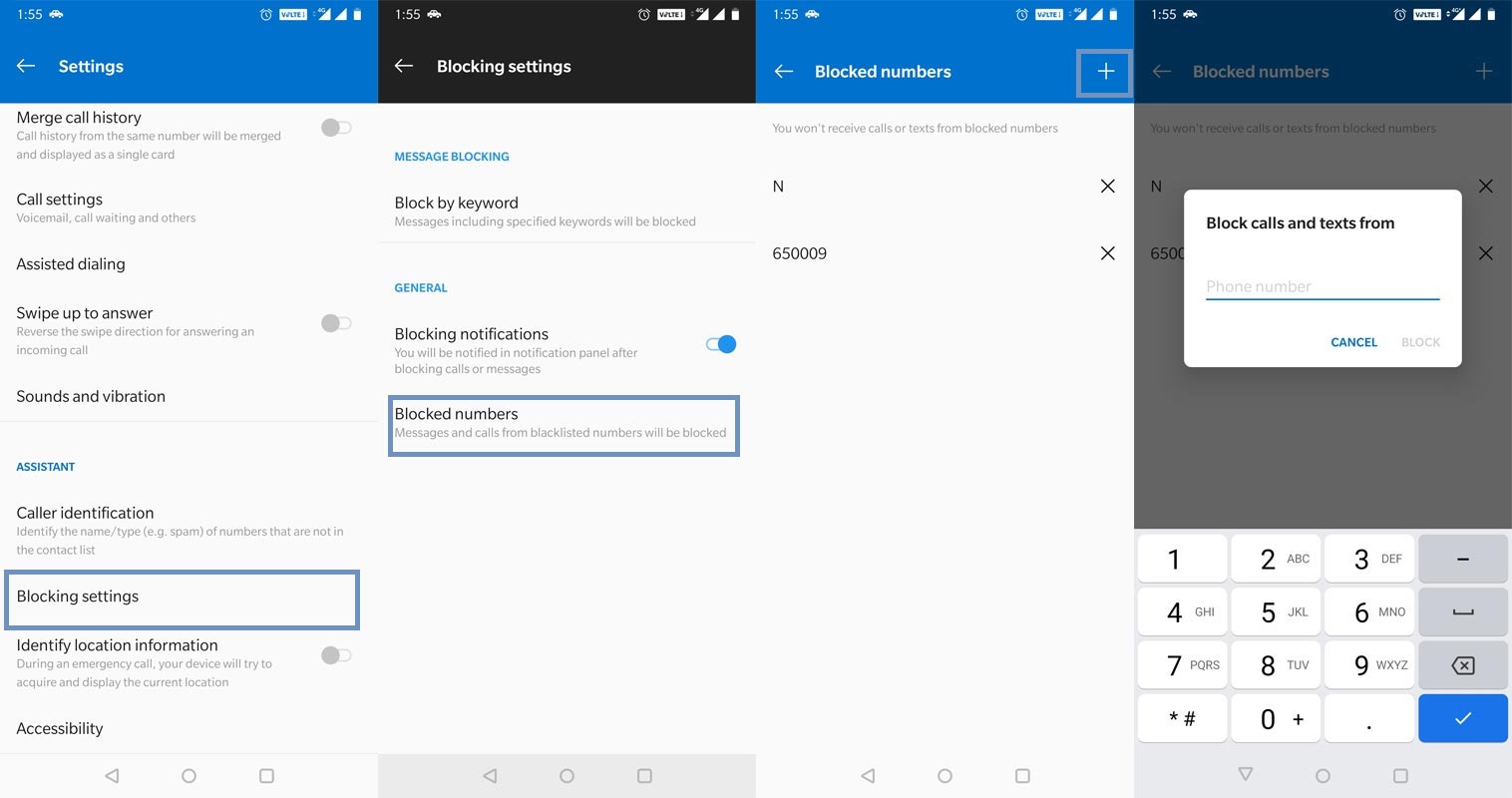
- Open your “Phone” or “Dialer” app and navigation to “logs.”
- Click on the “More” options icon and go to “Call Settings.”
- Select “Blocking Settings”
- You can use keyword or individual phone numbers to your Call Rejection list.
Any phone number added to this list won’t be able to contact you anymore.
Blacklist numbers on Huawei and Honor phones
Huawei and Honour phones both are own by Huawei. They always use heavily customized custom skin OS like Samsung. So, they will use different options and names for the general features in Android.
Steps
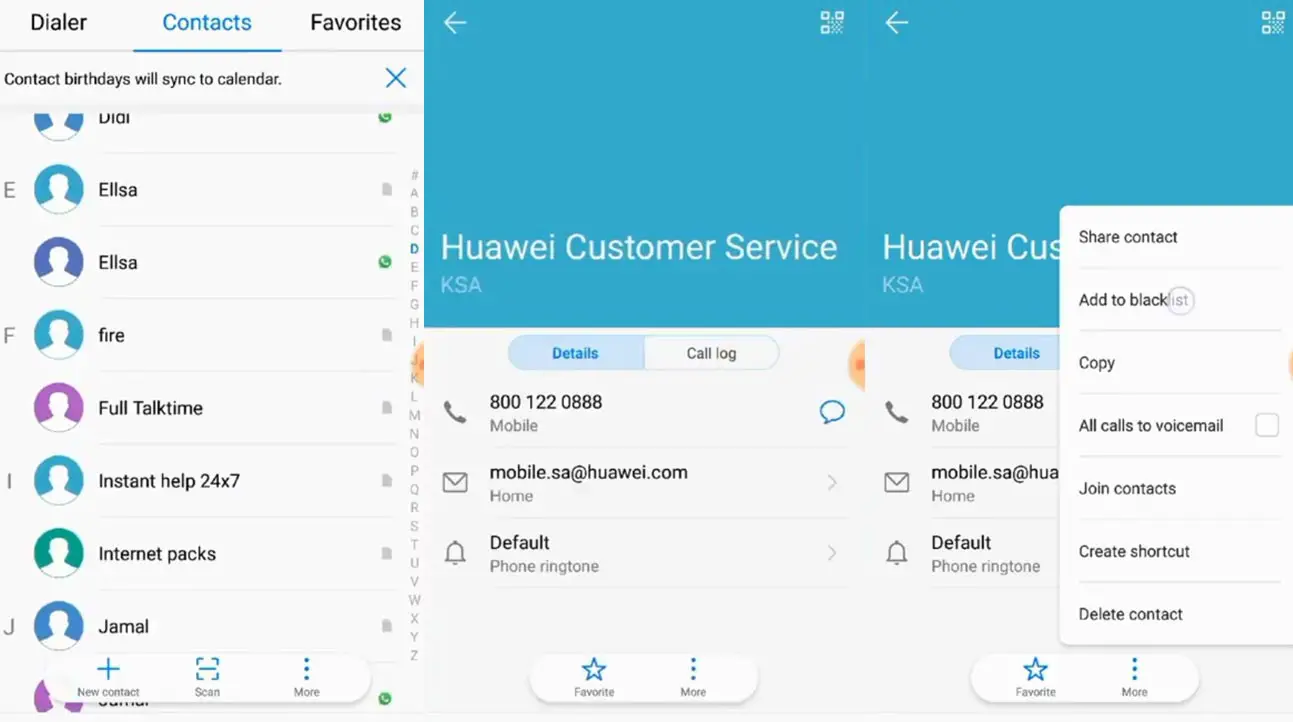
- Launch your “Phone Dialer/Contacts” app
- A single press on the number you want to block. You will get the full Vcard details of your contact. Press the three-dot icon to get the menu.
- Select on the “Add to Blacklist” option on the top panel to Block Number.
- You can also use long press on the recent calls to get the Blacklist option.
If you want to use filters, you can use a specific app.
Other smartphones
Most smartphones come with a phone blocking feature, and all you need do is to open your call log and long press on the number, then choose “Block Number.”
However, if you can’t see the phone number blocking feature on your device, you can use any of these 3rd-party apps below.
Blocking phone numbers using party apps
1. Truecaller
Truecaller is an advanced app with quite a lot of cool features. This app helps you to identify several phone numbers and also helps you to mark any number as SPAM. Interestingly, Truecaller works for both calls and SMS blocking; it is one of the best 3rd-party call management and SMS apps. I know some users are not comfortable to use the Truecaller app due to some privacy data issues. If you are not willing to use Truecaller, you can use alternative apps. But, Truecaller is efficient in blocking unwanted calls.
How to block phone numbers using Truecaller mobile app?
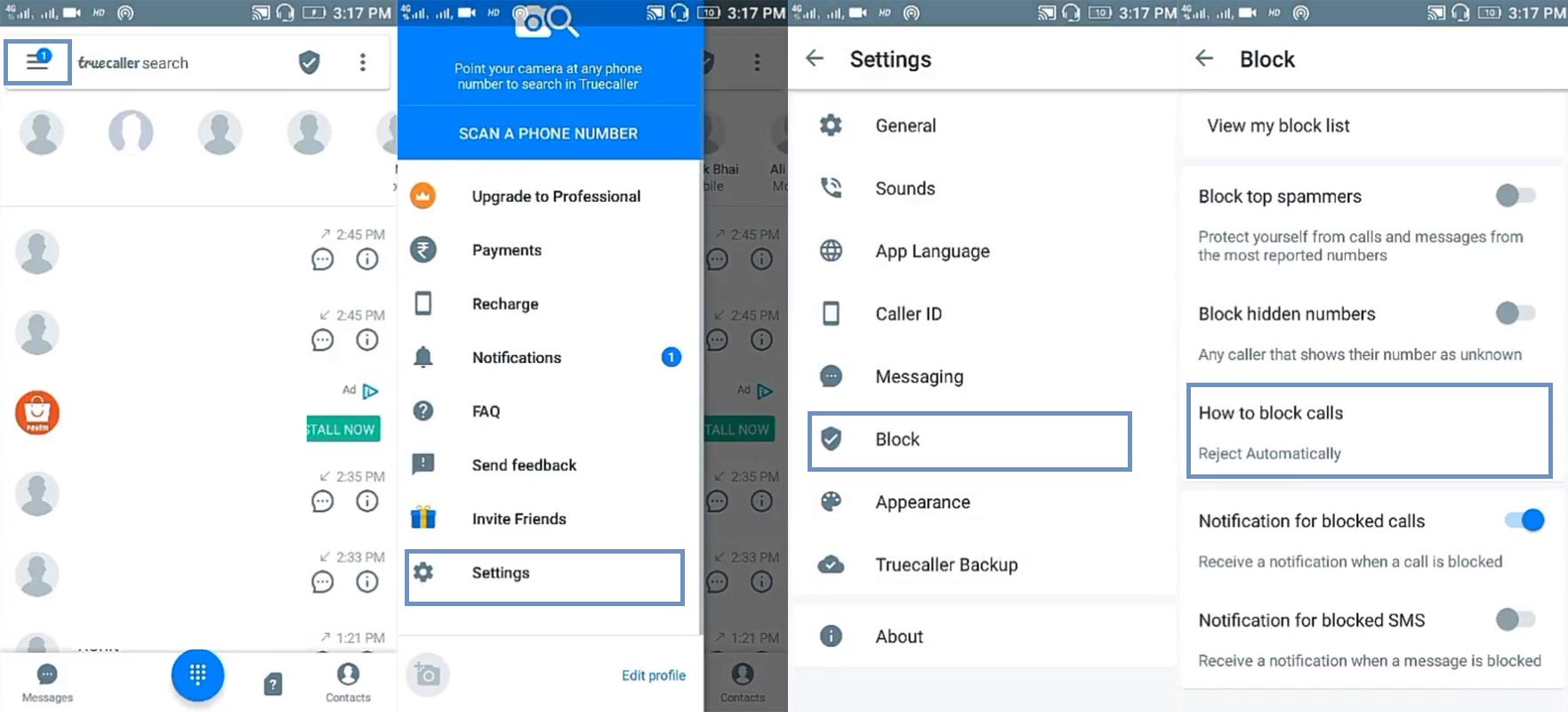
- Install the app on your smartphone
- Activate Truecaller as your preferred “Phone” app. (you can also make it your default SMS app)
- Tap and hold on the phone number or the contact name you want to block
- You can select more than one phone number at the same time
- Click on the “Blocking” icon at the top panel
- Select “Ok.”
- You can also Go to TrueCaller App> Settings> Block> How to Block Calls> Manually/Automatically.
That’s it; the blocked phone number won’t contact you. Also, you can manage all blocking from the settings menu.
Settings >>> Block >>> Customize/manage all Truecaller blocking features.
Install Truecaller From PlayStore
2. Mr. Number
It is another famous call blocking app for Android smartphone users. Mr. Number lets you block any number or contact. If you didn’t want Truecaller, Mr.Number is an excellent alternative app. It can avoid most of the general Tele callers.
How to use Mr. Number to block phone numbers?
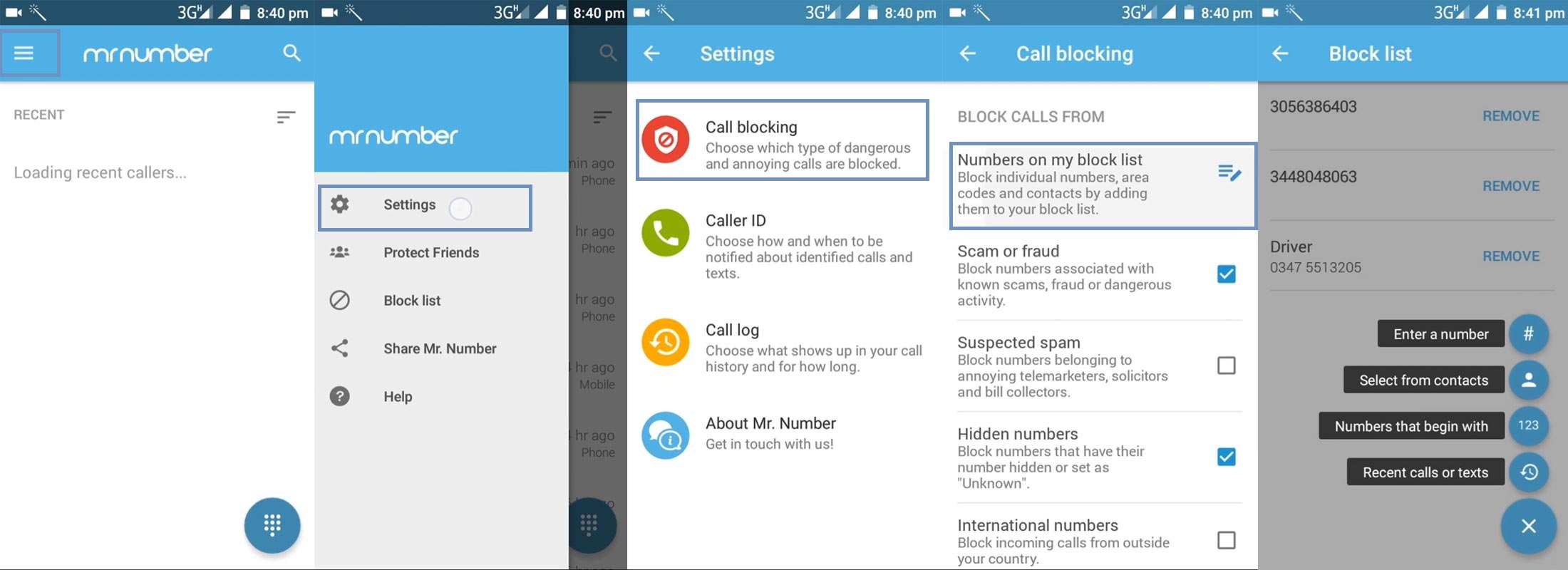
- Install and launch the app on your smartphone.
- Press and hold the number, then select the “Call Blocking” feature.
- You can also use the following steps. Open Mr. Number app> Settings> Call Blocking> Numbers on my Block List. You can add a number, select from the contacts list, Recent calls, or Numbers begin with.
Download and Install Mr.Number
3. Use your Mobile Operator Block App
Most of the mobile operators have their Call blocking app. It is useful for blocking Tele Callers and automatic calls. Since they filter the callers from their server-side, It is more accurate than the third-party apps. T-Mobile has its app called T-Mobile Name ID. You can get the details about who is calling you and automatically filtered out the anonymous callers.
How to Unblock Blocked Mobile Phone numbers on Android Mobiles?
It can happen. You may accidentally block the numbers, and you won’t receive the calls from your friends. Fortunately, there is always a reverse solution in Android. You can Unblock the numbers easily using the apps that you use to Block. Based on the apps and Mobile Manufacturers, the process may vary. But I will give you the overall steps.
Steps
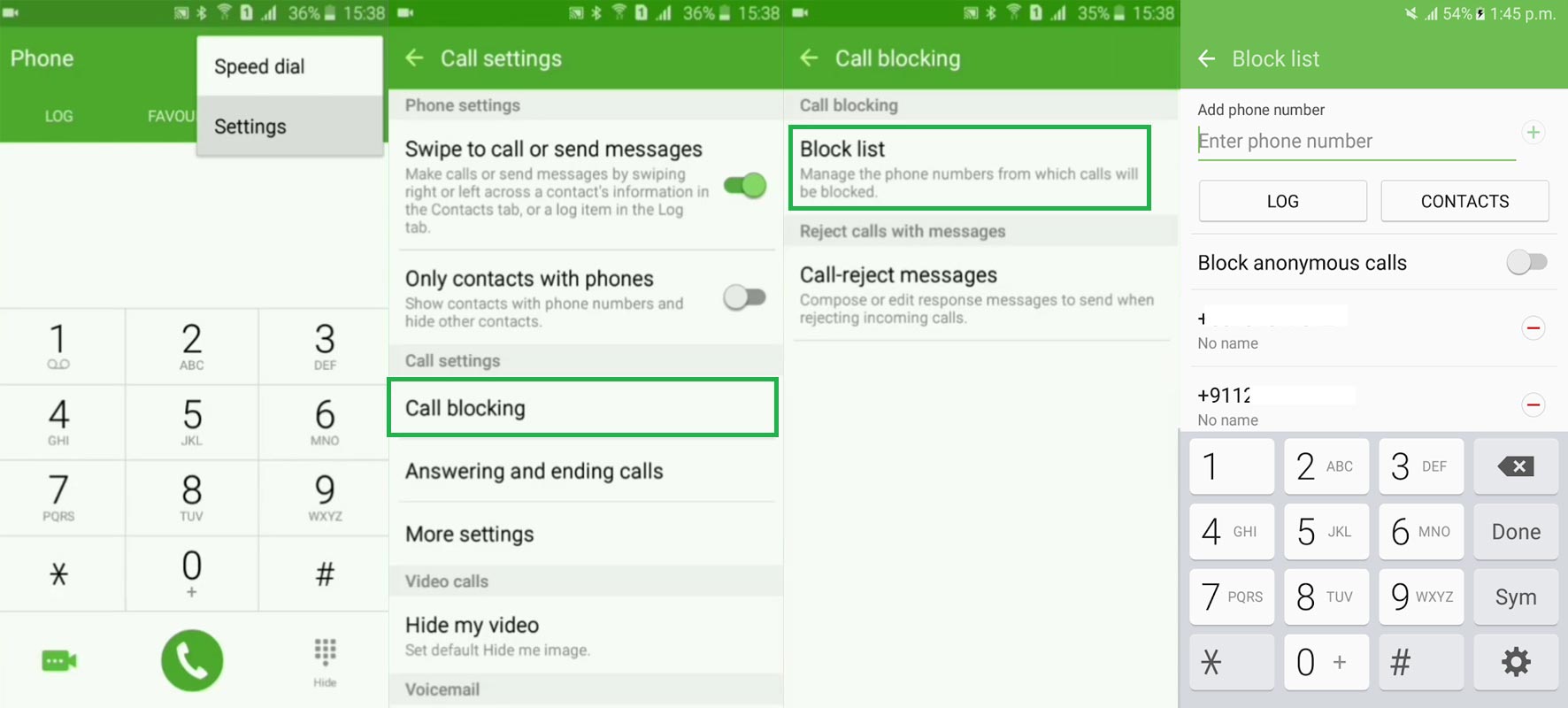
- Open your “Phone” or “Dialer” app and navigation to “logs.”
- Click on the “More” options icon and go to “Call Settings.”
- Select “Call Blocking”
- You can remove the blocked numbers by tapping “x” or remove options.
Wrap Up
These are the possible ways to block phone numbers on Android devices. If your device is an old Android app, you can lookup Playstore for a workable call blocking app that would work on your device. When you have a new mobile, I advise you to use the default Caller app from your manufacturer to block the numbers. Third-party apps are better, But, When you worry about your data, It is wise to use the default apps. However, these apps are free, and as such, you will see ads while using the apps. That’s why we advise; when you buy a mobile, you should always consider the software experience along with the hardware. If you still couldn’t block a number with these methods, comment, and we can help you out. Have a beautiful day.

Selva Ganesh is a Computer Science Engineer, Android Developer, and Tech Enthusiast. As the Chief Editor of this blog, he brings over 10 years of experience in Android development and professional blogging. He has completed multiple courses under the Google News Initiative, enhancing his expertise in digital journalism and content accuracy. Selva also manages Android Infotech, a globally recognized platform known for its practical, solution-focused articles that help users resolve Android-related issues.




Leave a Reply