
Enable and Disable Chrome Flags– If you enjoy exploring the depths of technology and pushing the boundaries of your ChromeOS ecosystem, then you’re likely familiar with the term “flags.” Chrome flags are experimental features and tools embedded in the Chrome browser and Chrome OS. These hidden gems are either in testing or have not yet made it to the software’s stable version. This article will delve into Chrome flags, understand their purpose, and learn how to turn them on and off.

What are Google Chrome Flags?
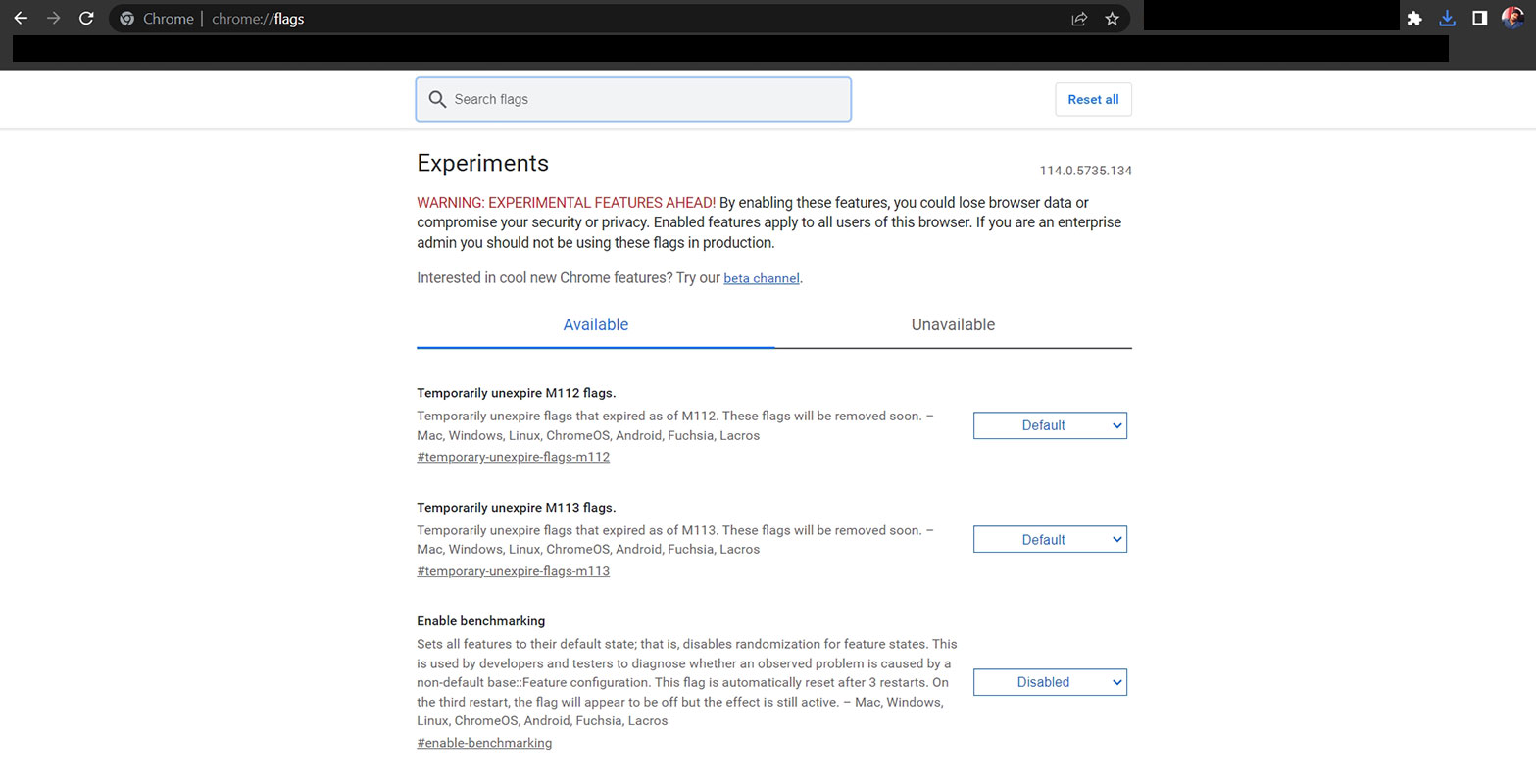
As an avid ChromeOS enthusiast, you may have encountered the term “flags” in the context of Chrome Unboxed or other tech sources. These flags are essentially experimental features and tools that are integral to Chrome and other software. While some flags eventually become mainstream features, others may depreciate for various reasons. Chrome flags are experimental features and tools embedded in the Chrome browser and Chrome OS. They serve two primary purposes: testing new features before their official release and facilitating developmental goals. These flags are initially turned off by default or are only available in developmental software versions.

The Benefits of Using Chrome Flags
Enabling Chrome flags can offer several advantages for tech enthusiasts and early adopters. Here are a few reasons why you might want to allow Chrome to flags:
- Access to Cutting-Edge Features: By enabling flags, you can gain early access to new, cutting-edge features that are not yet widely available in Chrome or ChromeOS. For instance, Picture-in-Picture (PiP) was once an experimental feature accessible via flags before becoming a standard feature in many Chromium-based browsers.
How to Enable Google Chrome Flags?
Enabling Chrome flags is straightforward. Follow these steps to unlock the hidden features:
- Open your Chrome browser or a Chrome OS device.
- In the URL bar, also known as the Omnibox, type or paste the following: chrome://flags.
- A warning message will appear, cautioning you about the potential instability of enabling flags. Take note of the risks involved.
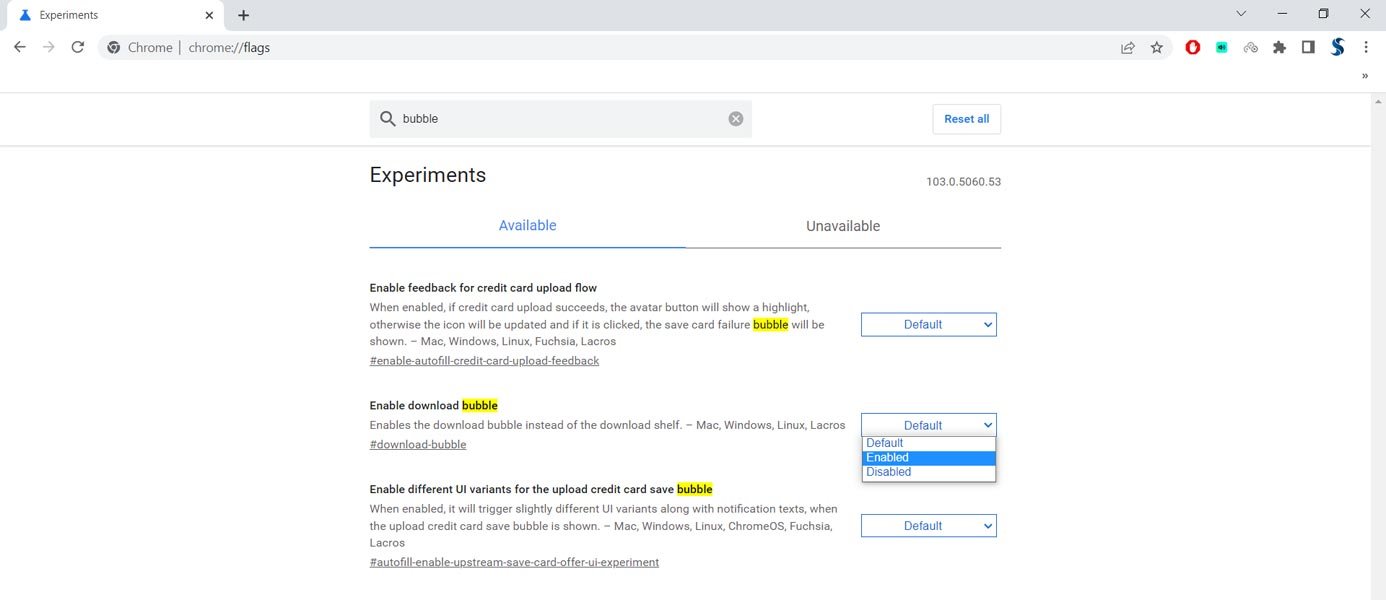
- Scroll through the list of available flags or use the search function to find a specific flag.
- Once you’ve found the flag you want to enable, click on the drop-down menu next to it.
- Select the “Enabled” option from the drop-down menu.
- After enabling a flag, you will be prompted to relaunch Chrome for the changes to take effect.
Precautions and Troubleshooting
While enabling Chrome flags can provide access to exciting features, it’s essential to exercise caution. Here are some precautions and troubleshooting tips to keep in mind:
- Potential Instability: Enabling flags may result in a less stable user experience, including occasional crashes or bugs. If you encounter issues, remember that you can easily reset all flags to their default settings using the “Reset all” button at the top of the chrome://flags page.
- Data Backup: It’s crucial to back up your device regularly, especially when experimenting with experimental features. If you encounter a severe issue preventing you from accessing Chrome, you may need to perform a powerwash, reset your device to its factory settings, and erase any local data. Ensure you have backups of any important files before proceeding.
How to Disable Google Chrome Flags?
You can quickly disable Chrome flags if you no longer want to use a specific flag or encounter issues after enabling it. Here’s how:
- Open your Chrome browser or a Chrome OS device.
- In the URL bar, type or paste chrome://flags.
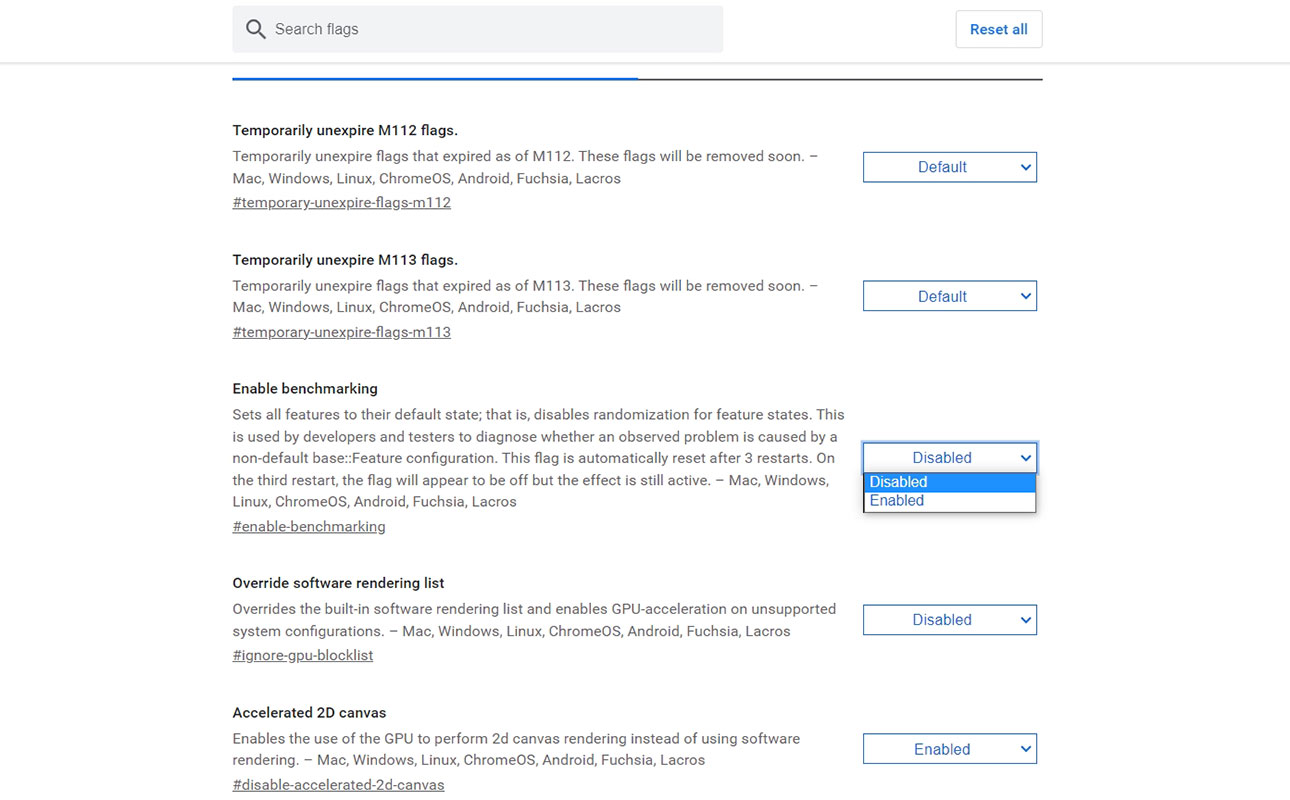
- Locate the flag you want to disable.
- Click on the drop-down menu next to the flag and select the “Default” or “Disabled” option.
- Relaunch Chrome for the changes to take effect.
FAQs
Are Chrome flags safe to enable?
Enabling Chrome flags carries some risk, as they are experimental features. While most flags are relatively stable, some may cause crashes or other issues. It’s recommended to proceed with caution and be prepared to troubleshoot any problems that may arise.
Can I reset all Chrome flags to their default settings?
Yes, you can easily reset all Chrome flags to their default settings using the “Reset all” button at the top of the chrome://flags page.
Will enabling Chrome flags void my warranty?
Enabling Chrome flags does not void your warranty. However, it’s essential to note that experimental features may have unintended consequences or destabilize your system. Exercise caution and consider the potential risks before enabling flags.
Can I enable Chrome flags on my mobile device?
Chrome flags are only accessible on desktop versions of Chrome and on Chrome OS. They are not available on mobile versions of the Chrome browser.
Where can I find more information about specific Chrome flags?
For detailed information about specific Chrome flags, you can visit the Chromium Source Code website or search for reputable tech sources that cover Chrome flags and experimental features.
Wrap Up
Chrome flags provide tech enthusiasts a playground to explore new and experimental features in the Chrome browser and the Chrome OS ecosystem. You can access cutting-edge tools and functionalities by enabling flags before they become mainstream. However, it’s crucial to exercise caution and be aware of the potential risks of allowing experimental features. Unlock the hidden potential of your Chrome experience by diving into the world of Chrome flags. Discover exciting features and stay at the forefront of technology.

Selva Ganesh is a Computer Science Engineer, Android Developer, and Tech Enthusiast. As the Chief Editor of this blog, he brings over 10 years of experience in Android development and professional blogging. He has completed multiple courses under the Google News Initiative, enhancing his expertise in digital journalism and content accuracy. Selva also manages Android Infotech, a globally recognized platform known for its practical, solution-focused articles that help users resolve Android-related issues.




Great explanation of why some Chrome flags are hidden. I also shared this with a friend who uses ChromeOS.
I enabled a few flags and noticed smoother performance afterward.
This article answered my questions about disabling unstable flags. This was easier than I expected.
I enabled a few flags and noticed smoother performance afterward. Looking forward to more Chrome tutorials like this.
I appreciate the warning about using experimental browser features. Appreciate the detailed explanation.
Simple and practical guide for Chrome users. It worked well on the latest Chrome version.
This article is still relevant and useful even now. This was easier than I expected.
I found the reset option especially useful after testing some flags. Looking forward to more Chrome tutorials like this.
Thanks for explaining the risks of enabling unsupported flags.
Thanks for explaining the risks of enabling unsupported flags. It worked well on the latest Chrome version.
Useful reference for advanced Chrome users. I will bookmark this guide for future reference.
Thanks for explaining the risks of enabling unsupported flags. This helped fix a minor issue I was facing.
Very clear explanation about turning Chrome flags on and off. This was easier than I expected.
This guide made it much easier to understand how Chrome flags work.
This saved me a lot of time while changing browser settings. This helped fix a minor issue I was facing.
Now I understand how experimental Chrome features are tested. Looking forward to more Chrome tutorials like this.
I did not know about chrome://flags before this post. Thanks for sharing. Looking forward to more Chrome tutorials like this.
I enabled a few flags and noticed smoother performance afterward. This helped fix a minor issue I was facing.
Good breakdown of experimental Chrome features and their risks. I also shared this with a friend who uses ChromeOS.
Nicely written tutorial with practical instructions. Everything was explained in a beginner-friendly way.