
Android Go OS is introduced to deal with entry-level mobiles which have low specs. They can’t handle huge apps. Sometimes regular apps also struggle to operate due to resources not available. Android Go apps use fewer resources, and also, you can enjoy most of the features that standard apps have. In the beginning, Google limited these apps to Android Go devices only. Lately, they began to release some apps for every user. Recently, Lightweight Gmail Go app available for everyone. But Google pulled the update. So, we will guide you on How you can install Google Go on All Android Mobiles. When you are dealing with low RAM and entry-level processor devices, you can use this app. It will consume less RAM, and most of the time, it won’t close in the background when you use it in the task manager.
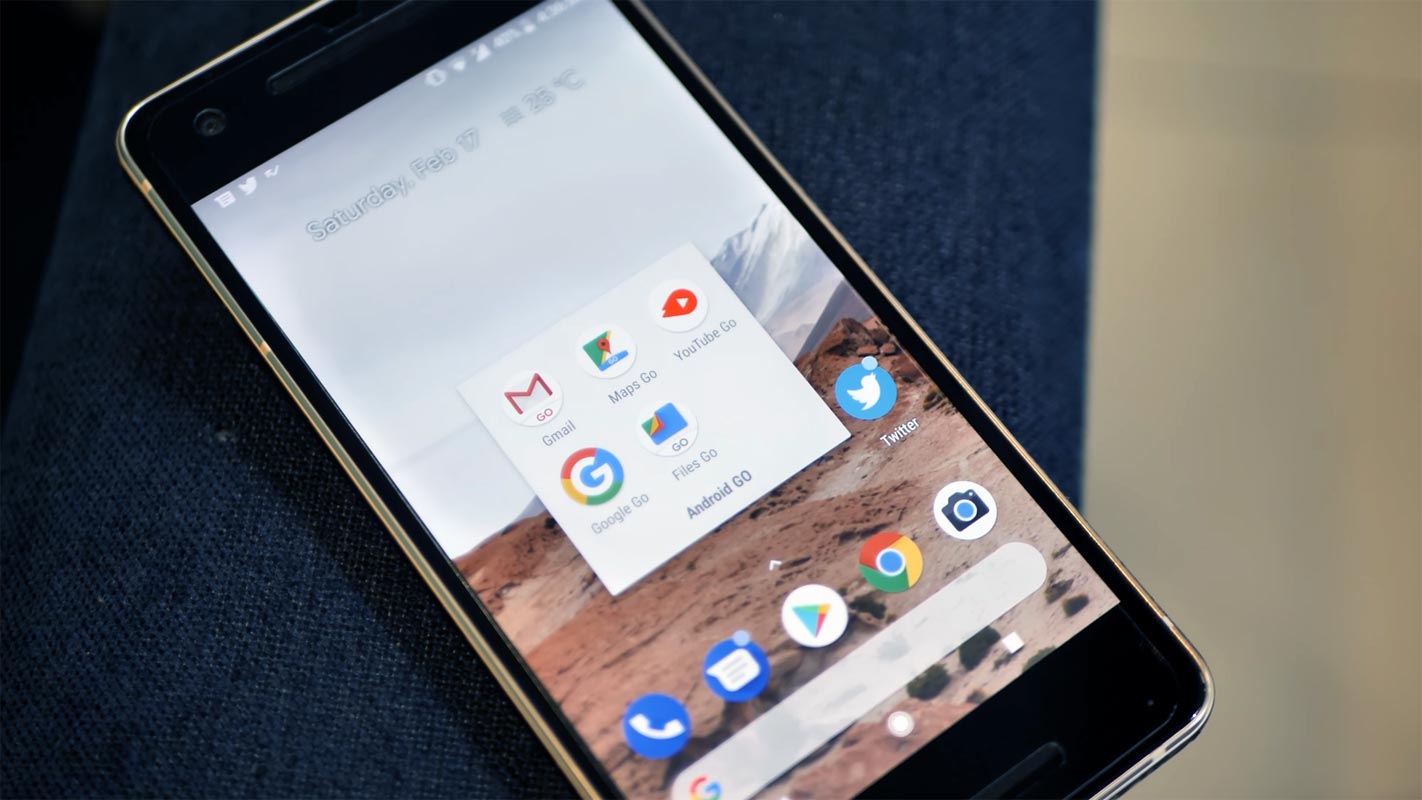
A new addition to the Google Go family, Gmail Go is available to download on Google play store for All Android users. Earlier, it was allowed to download on those devices that run Android Go, lightweight, and less feature open-source operating systems to run on a low budget, low resources Android phones.

What is Gmail Go?
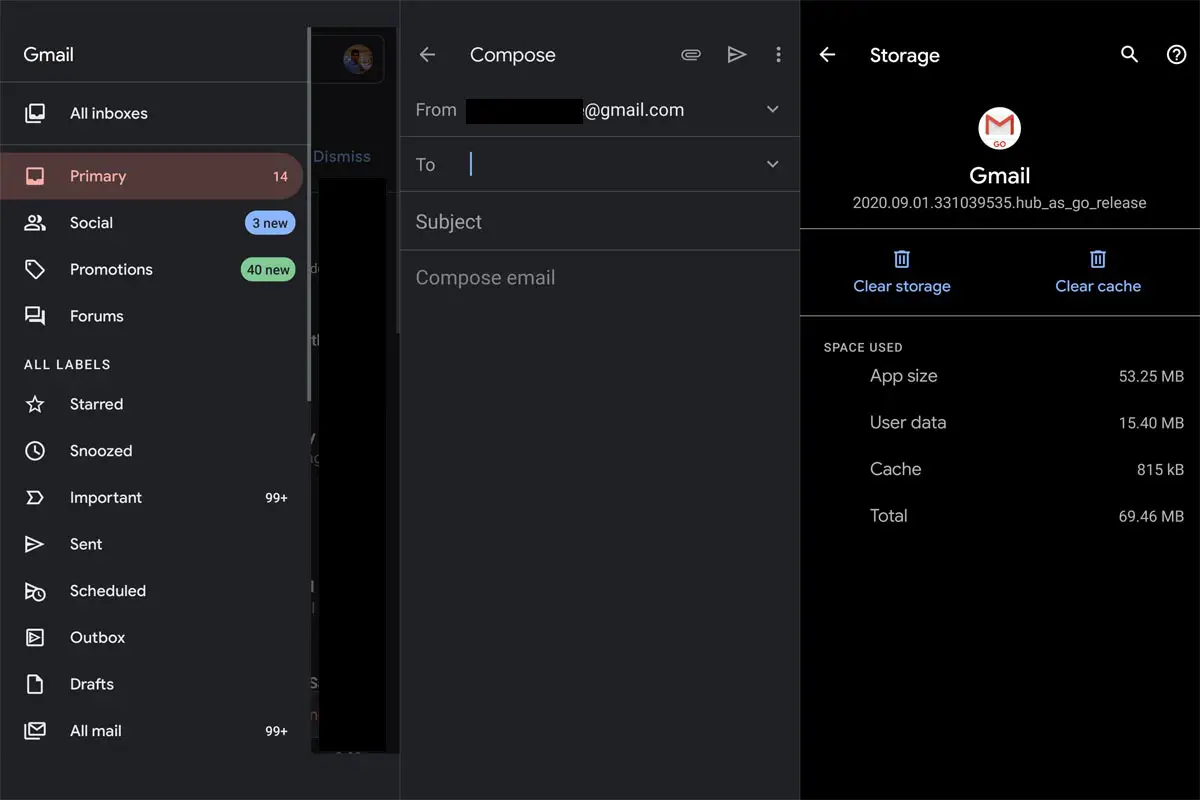
Gmail Go is an emailing app designed by Google to tun on the Android Go operating system. It is identical to the regular Gmail app as you have been using for years. But Google designed it to run on low resourced mobile phone. Gmail Go requires less RAM and less Mobile data. Initially, Google launched it to the Android Go users that use the low resolution and low resourced mobile phone. In some regions, mobile data is much expansive, and in most countries, the data price is high.
Why Google released Gmail Go?
As a matter of fact, many users prefer the Gmail Go cause of its lightweight features. Many users don’t like some features in regular Gmail, and they use Gmail to receive and send their necessary mails. That kind of users liked the light version of Gmail very much. That is why Google decides to make it available to all Android users.
What is the Difference Between Gmail And Gmail Go?
The Gmail Go is almost the same as the regular Gmail. There are slight differences between the two.
- The Gmail Go has a badge of “Go” at the bottom of the Gmail logo, whereas the regular Gmail doesn’t have this badge.
- It doesn’t have the Google Meet feature installed.
- The App has only 9.9MB on Google play store in some mobiles, but Gmail is 22MB. In the installation, the app size may vary depending on the mobiles. But it still less than your regular Gmail app size.
- Compare with the regular version, Gmail Go has a simple UI and has no shadows or other graphic attributes.
- It is faster to download and use 40% fewer internet data than regular Gmail.
- Gmail Go doesn’t work on high frame rate devices, and it will shutter. It is designed to work with low frame rate ordinary mobile phones.
Go Versions of Other Apps
Google launched the Android Go in 2018, and it has added many apps that run on this low resource operating system. The list of “Go” apps that Google has developed for Android Go include Youtube Go, Google Go, Google Maps Go, Gallery Go, and now Gmail Go. Observing the popularity of Gmail Go and its benefits for users, Google made it available for all Android users instead of limited Android Go users.
Google pulled Gmail Go from General availability
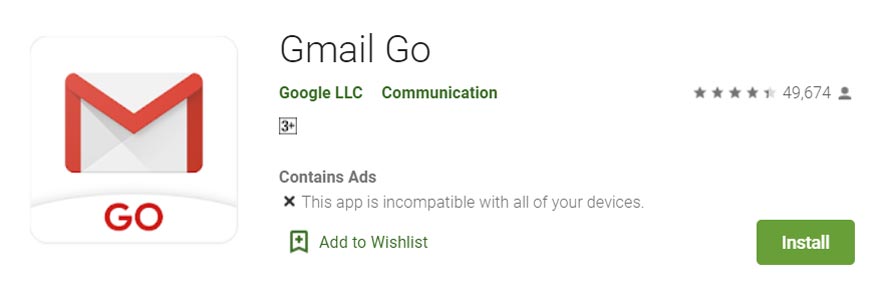
Hardly after 24 hours of the Gmail Go availability to all Android users, Google took back its decision on 10 October 2020. Gmail Go is no longer available to high-end mobile phones that run on a regular Android OS version. If you try to download it from the Google play store with any flagship mobile, the message “your device is not compatible with this version” appears on the screen. It means only those users can access the Gmail Go that has low fresh rate screen mobile phones, obviously low prices phone with low resources.
How to install the Gmail Go app in All Android Mobiles?
The following method will work on all Android mobiles. When downloading the app in the APK mirror, you should install the .apk file. Not bundle file.
- Download the Gmail Go offline installer.
- Allow Unknow sources before installation. You can turn off this option after the installation.
- After the installation opens the app, Choose your Google Account.
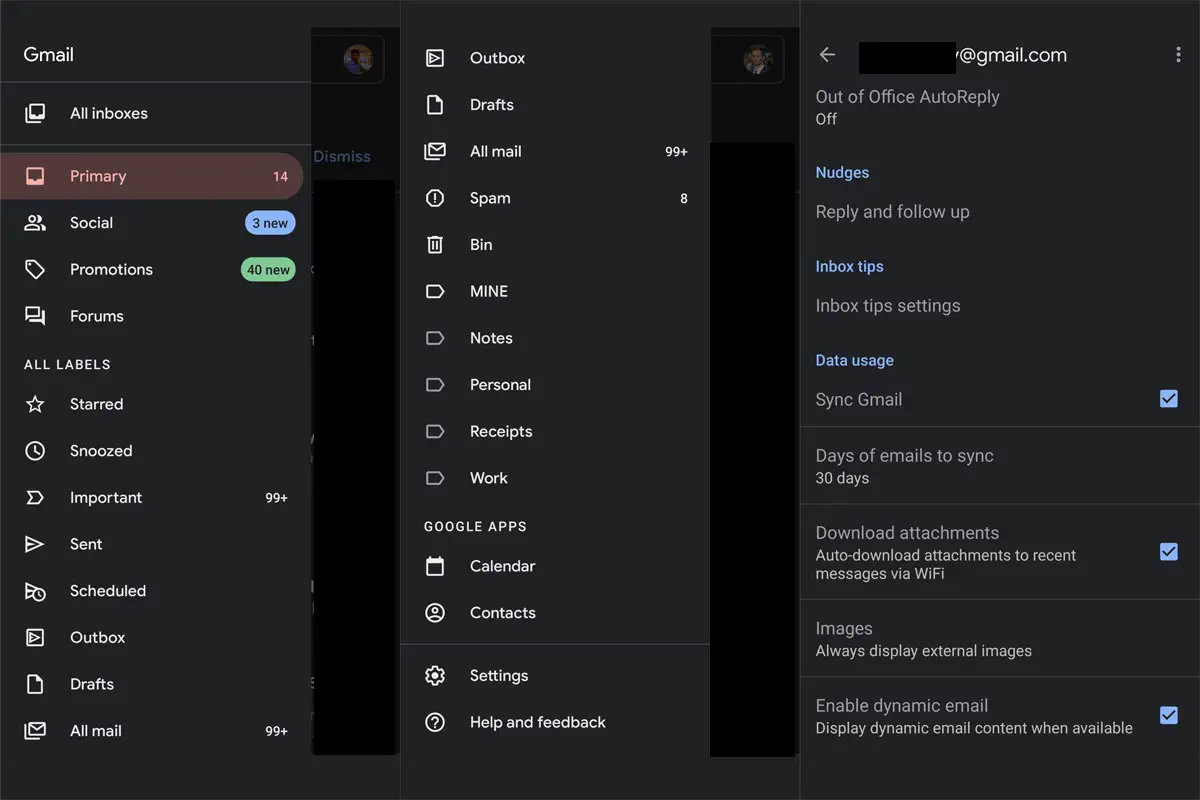
- To get Gmail to work, you have to turn on the sync feature.
- Select the hamburger menu>Settings> Choose Gmail Account> Turn on the Sync feature.
Wrap Up
When you need more features within the Gmail app, You can install the regular version because it has Google Docs integration. But when you have low RAM mobiles and look for Lite apps alternatives, you can use the Go version. Gmail Go is a good addition for those who use Gmail only for reading and writing emails. Its low usage of RAM and mobile data is excellent for the ordinary user. But the latest update disappointed many users who started using Gmail Go on their flagship mobiles. What do you think about all this? Do tell us in the comments below.

Selva Ganesh is a Computer Science Engineer, Android Developer, and Tech Enthusiast. As the Chief Editor of this blog, he brings over 10 years of experience in Android development and professional blogging. He has completed multiple courses under the Google News Initiative, enhancing his expertise in digital journalism and content accuracy. Selva also manages Android Infotech, a globally recognized platform known for its practical, solution-focused articles that help users resolve Android-related issues.




Leave a Reply