
In today’s fast-paced world, our iPhones have seamlessly transformed into indispensable companions, keeping us constantly connected, well-informed, and thoroughly entertained. Yet, nothing can be more exasperating than the recurrent occurrence of your iPhone slipping into sleep mode when you’re engrossed in reading an article, watching an exciting video, or deeply engrossed in an app. This vexing issue can disrupt your seamless user experience. To assist you in resolving this predicament and ensuring that your iPhone’s screen remains wide awake precisely when you desire it, we’re here to explore a range of practical and user-friendly tips and tricks. These invaluable insights will empower you to effortlessly safeguard your iPhone from automatically dozing off, ensuring you have complete control over when your device’s display remains illuminated. Let’s embark on a journey to discover these solutions and elevate your iPhone experience to a new level of convenience and flexibility.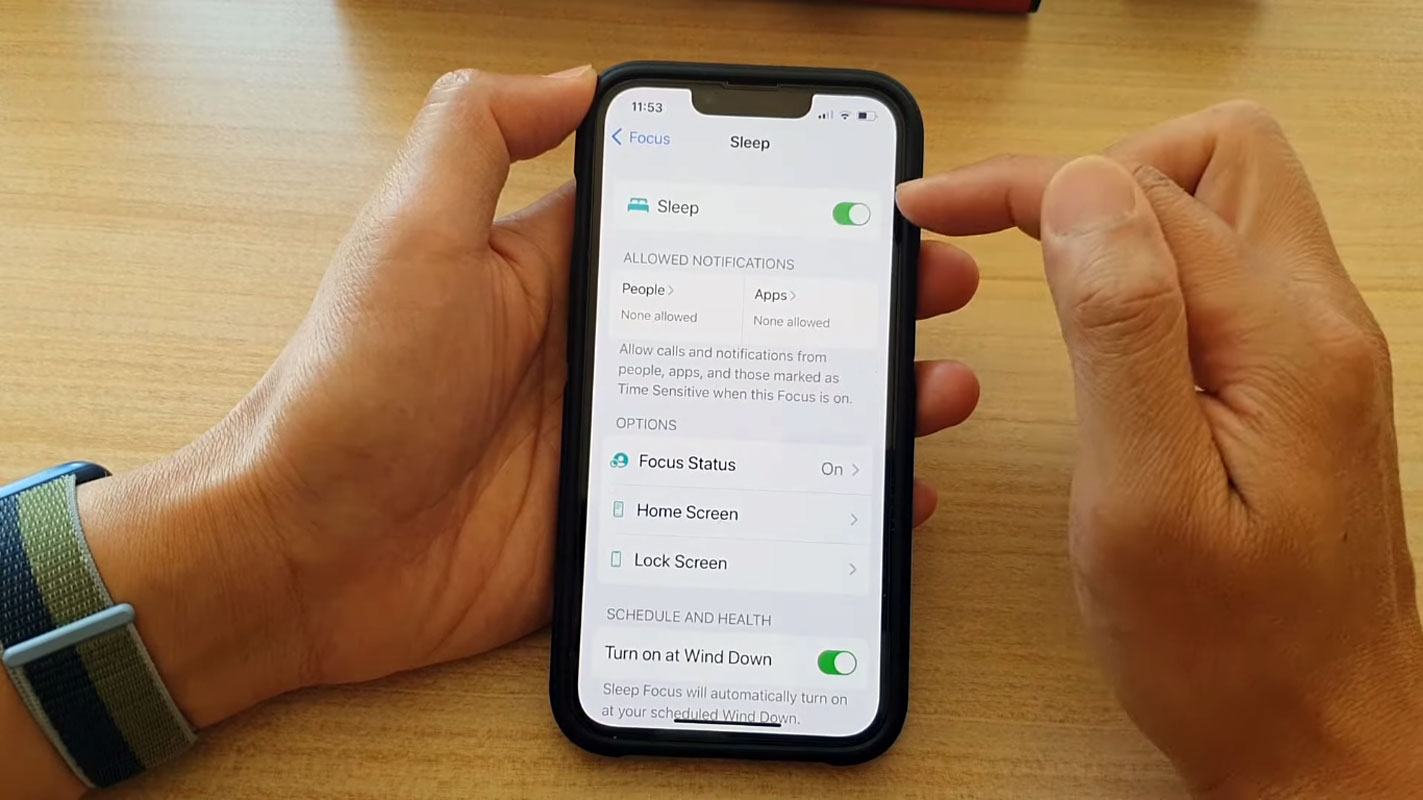
Adjusting Auto-Lock Settings
One of the simplest ways to prevent your iPhone from locking and going to sleep is by adjusting the Auto-Lock settings. Here’s a step-by-step guide on how to do it:

Open Settings
- First, unlock your iPhone and head to the home screen.
- Locate the ‘Settings’ application and tap on it to enter.
Access Display & Brightness
- In the Settings menu, scroll down and find ‘Display & Brightness.’
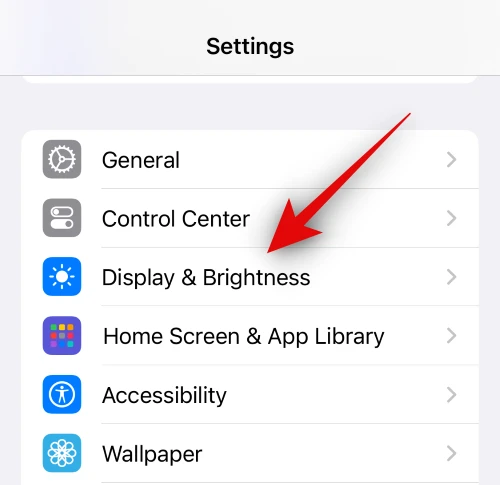
- Tap on ‘Display & Brightness’ to proceed.
Modify Auto-Lock
- Within the Display & Brightness settings, you’ll see ‘Auto-Lock.’
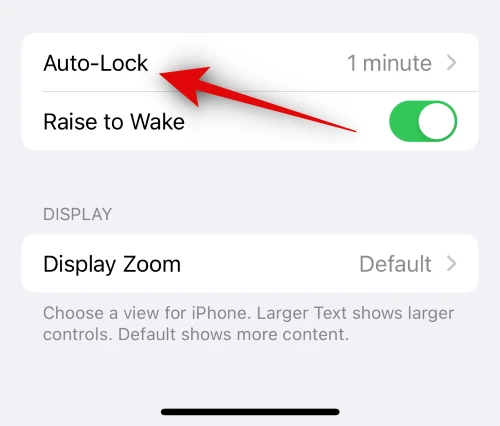
- Tap on ‘Auto-Lock’ to access the options.
Select ‘Never’
- You’ll find various time intervals for auto-lock, ranging from 30 seconds to 5 minutes.
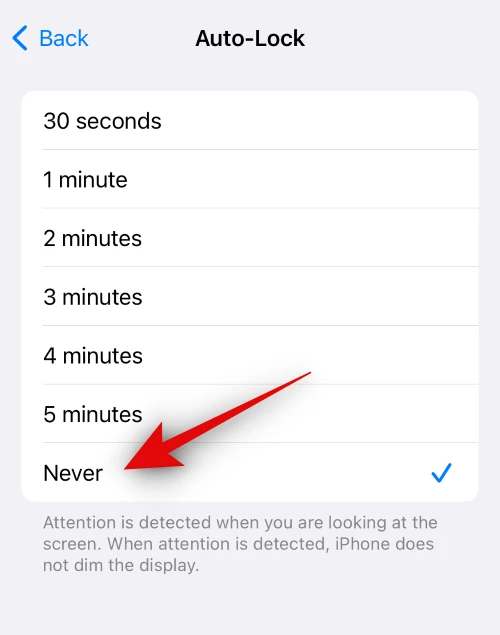
- To prevent your iPhone from locking automatically, tap on ‘Never.’
And that’s it! By selecting ‘Never,’ your iPhone will no longer go to sleep alone. Your screen will stay on indefinitely unless you decide to lock your device manually by pressing the Sleep/Wake button. We recommend manually locking your device when you’re not using it to help conserve battery life on your current charge.
Disable Auto-Brightness
To maintain control over your iPhone’s display brightness, you might also want to disable Auto-Brightness. Here’s how you can do it:
Open Settings Again
- Return to your home screen and open the ‘Settings’ app.
Access Accessibility
- Scroll down the Settings menu and find ‘Accessibility.’
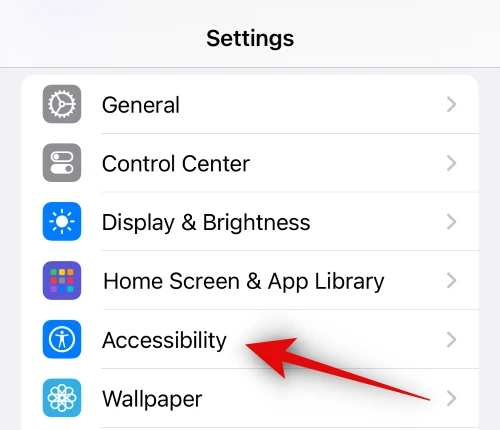
- Tap on ‘Accessibility’ to continue.
Navigate to Display & Text Size
- Within the Accessibility settings, you’ll find ‘Display & Text Size.’
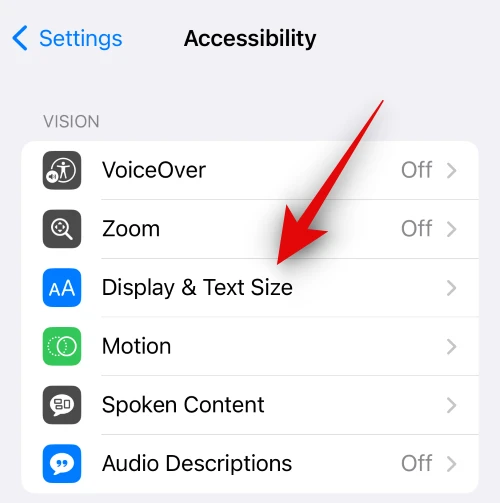
- Tap on ‘Display & Text Size.’
Turn Off Auto-Brightness
- At the bottom of the Display & Text Size settings, you’ll find ‘Auto-Brightness.’
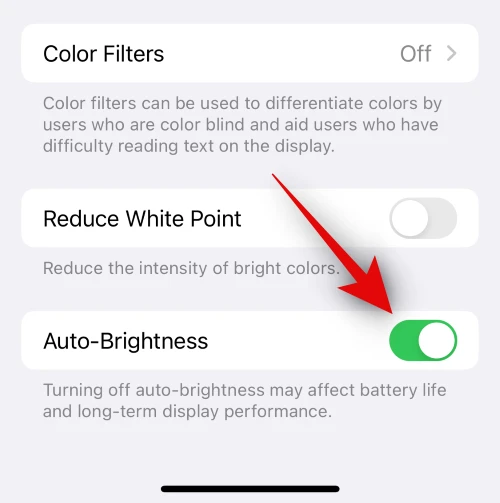
- Toggle it off to prevent your iPhone from managing your display’s brightness automatically.
Following these steps, your iPhone will no longer randomly adjust its brightness. However, we recommend manually controlling the brightness to preserve your battery.
Disabling Sleep Focus Mode
If you want to stop your iPhone from automatically activating Sleep Focus mode daily, especially if you have Sleep Schedule turned on in the Health app, here’s how you can do it:
Open the Health App
- Find the Health app on your home screen and tap on browse to open it.
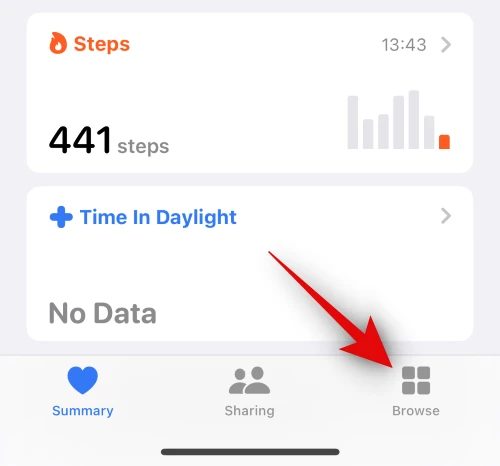
Access Sleep Settings
- Inside the Health app, navigate to the ‘Sleep’ section.
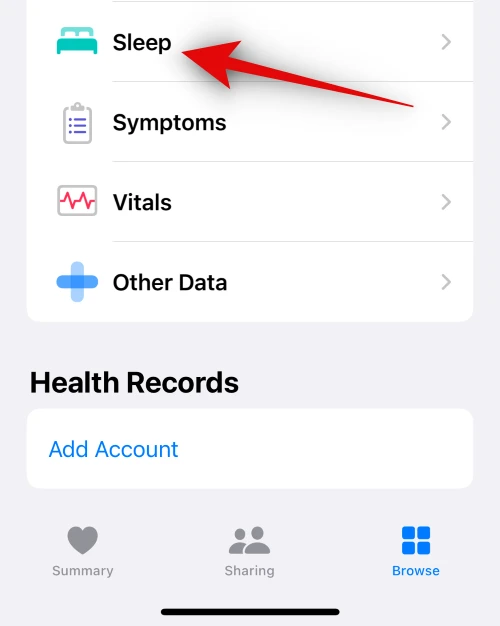
- Tap on ‘Sleep’ to access your sleep settings.
Turn off the Sleep Schedule
- Scroll down to find ‘Full Schedule & Options.’
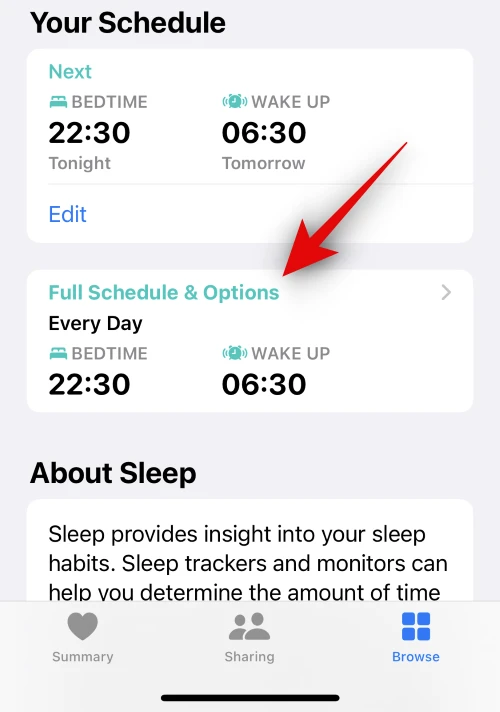
- In this section, you’ll see the ‘Sleep Schedule’ toggle.
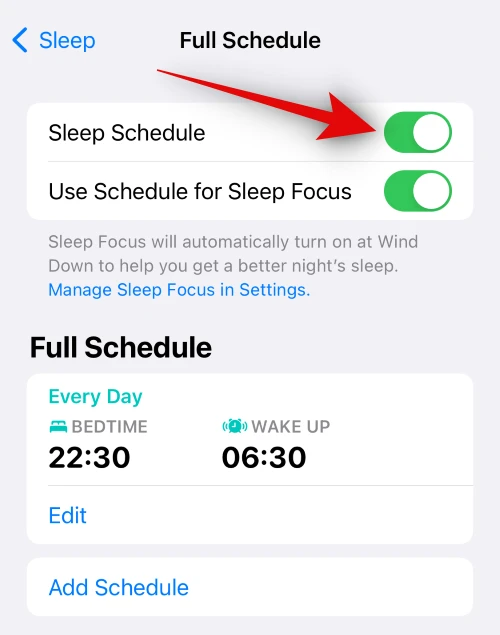
- Tap it to turn it off.
By following these steps, your iPhone will no longer automatically activate the Sleep Focus mode based on your set schedule. You’ll be free to start it manually whenever you wish to use it.
FAQs
Why does my iPhone go to sleep automatically?
Your iPhone goes to sleep automatically to conserve battery life and ensure privacy when not in use. You have the option to modify the settings to avoid this.
What is the ideal Auto-Lock setting for my iPhone?
The ideal setting depends on your preferences. However, ‘Never’ will keep your screen on until you manually lock it.
Is it essential to disable Auto-Brightness on my iPhone?
It’s not essential, but disabling Auto-Brightness allows you to have better control over your display’s brightness.
How does Sleep Focus mode work on the iPhone?
Sleep Focus mode is designed to help you focus on sleep by limiting notifications during your set sleep schedule.
Can I still manually lock my iPhone after disabling Auto-Lock?
Yes, you can manually lock your iPhone by pressing the Sleep/Wake button even after disabling Auto-Lock.
Wrap Up
In this comprehensive article, we’ve delved into practical methods to ensure that your iPhone doesn’t go to sleep on its own, a frustrating occurrence that many of us have encountered. By carefully adjusting your Auto-Lock settings, disabling Auto-Brightness, and effectively managing the Sleep Focus mode, you’ll gain a newfound control over your device. Not only will these techniques prevent untimely screen dimming and automatic locking, but they also prolong your iPhone’s battery life, a vital consideration for all users. By following these steps, you can enjoy a seamless and uninterrupted iPhone experience, ensuring that your screen remains awake precisely when you need it the most.
These tips are not only about convenience but also about optimizing your iPhone’s performance, providing you with the power to tailor your device to your preferences and requirements.

Selva Ganesh is a Computer Science Engineer, Android Developer, and Tech Enthusiast. As the Chief Editor of this blog, he brings over 10 years of experience in Android development and professional blogging. He has completed multiple courses under the Google News Initiative, enhancing his expertise in digital journalism and content accuracy. Selva also manages Android Infotech, a globally recognized platform known for its practical, solution-focused articles that help users resolve Android-related issues.




Leave a Reply