
Google Maps Without Internet– In today’s fast-paced world, Google Maps has become an indispensable tool for navigation. But what happens when you find yourself without mobile data or Wi-Fi access? The good news is that you can still use Google Maps offline and navigate seamlessly. By downloading maps in advance, you can access turn-by-turn directions, points of interest, and essential details without needing a live internet connection. Here’s the ultimate guide to mastering Google Maps offline mode.
Why You Need Google Maps Offline
Imagine travelling to a remote village, hiking in the mountains, or exploring a foreign city with high data roaming charges. In these situations, offline maps become a lifesaver. They let you stay on track without worrying about unstable signals, expensive roaming, or dead zones.

Step-by-Step Guide: How to Download Google Maps Offline
To unlock the full potential of offline Google Maps, you need to download the areas you’ll need beforehand. This works for both Android and iOS devices.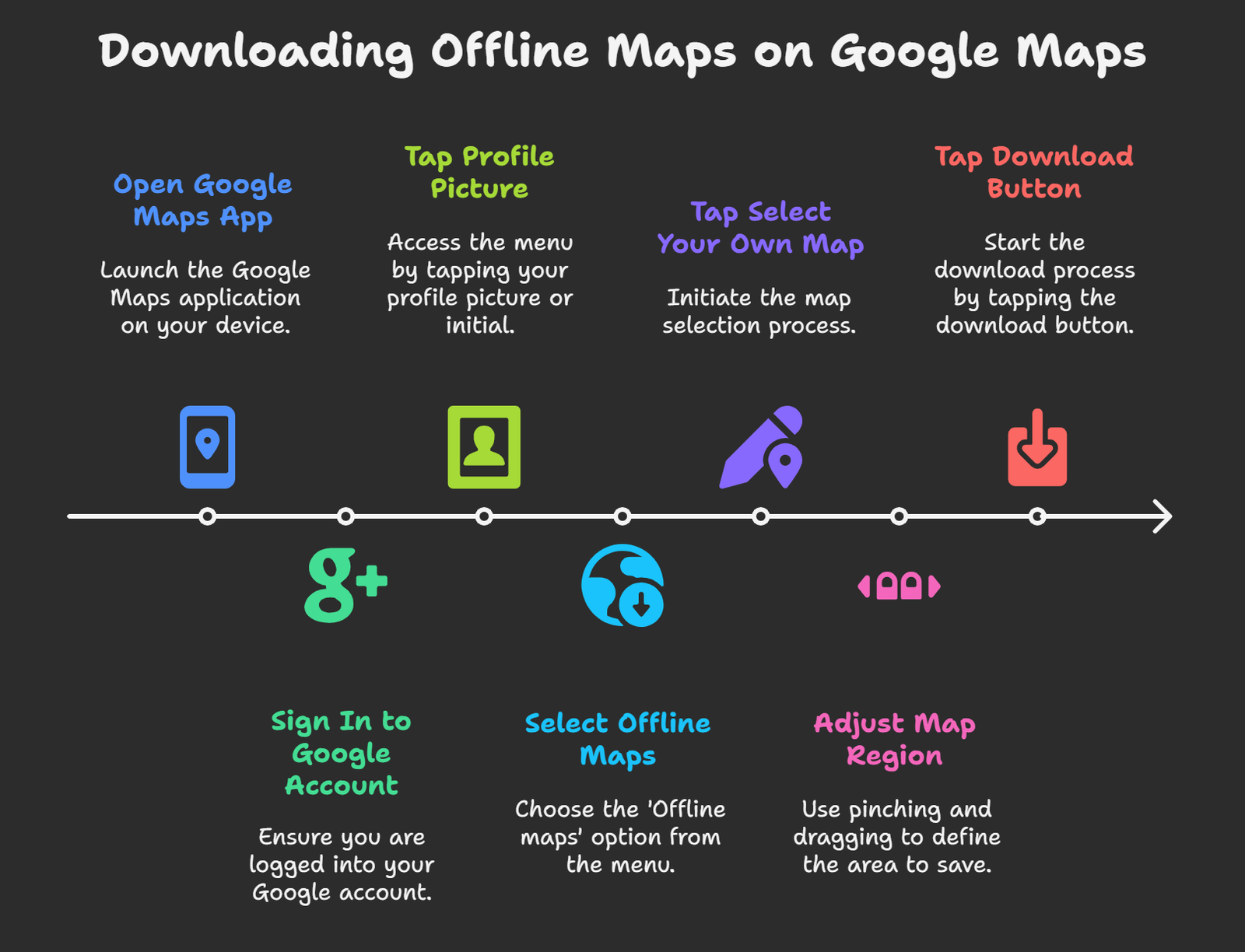
1. Open the Google Maps App
Ensure you have the latest version of Google Maps installed from the Play Store or App Store.
2. Sign in to Your Google Account
Logging in ensures your offline maps are saved to your account and can sync across devices if needed.
3. Access the Offline Maps Menu
- Tap your profile picture or initials in the top-right corner.
- Select Offline maps from the menu options.
4. Choose Your Area
- Tap Select your own map.
- A blue box will appear on the screen—Zoom in or out to adjust the coverage area.
- The app will display how much storage space the download requires.
5. Download the Map
- Tap the Download button.
- Wait for the download to complete (a Wi-Fi connection is recommended).
- Once saved, you can access it anytime by visiting the Offline maps section.
How Google Maps Works Without Internet
When offline, your phone relies on its built-in GPS receiver rather than mobile data. The GPS pinpoints your real-time location, while the downloaded maps provide navigation data, including road names, routes, and landmarks. This allows you to continue navigating even in areas with no cellular coverage.
Limitations of Google Maps Offline
While extremely useful, offline maps have certain restrictions that you should be aware of:
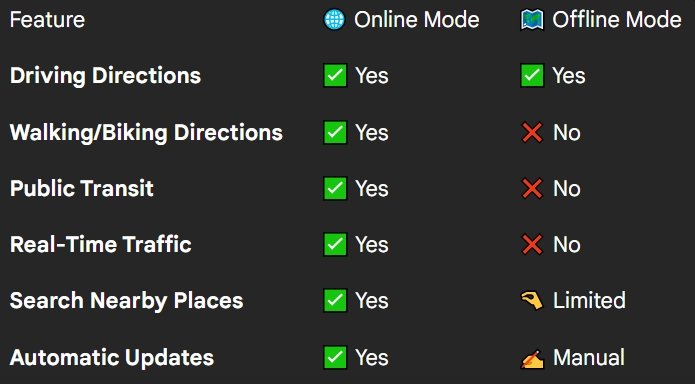
1. Driving Directions Only
Offline mode supports driving directions but does not provide detailed routes for public transport, walking, or cycling.
2. No Live Traffic Updates
Google Maps cannot display real-time traffic conditions, lane guidance, or detours without an internet connection. Travel times are based on normal conditions.
3. Limited Search Options
You can search for restaurants, hotels, gas stations, and other popular categories within the saved area. However, new or niche locations may not appear if not included in the downloaded data.
4. Expiration of Maps
Offline maps expire after 30 days to ensure you always have the most up-to-date routes. You can refresh them manually or set them to auto-update over Wi-Fi.
Tips for Maximizing Google Maps Offline
To make the most of Google Maps without internet, follow these pro tips:
- Download Maps Over Wi-Fi: Always use Wi-Fi to avoid excessive mobile data usage.
- Save Large Regions: Instead of downloading small areas, save entire cities or regions for convenience.
- Update Regularly: Refresh your offline maps before trips to ensure accuracy.
- Use Storage Wisely: Maps take up Storage, so clear old ones when unnecessary.
- Plan Ahead: If you’re going abroad, download maps of your destination before leaving.
Best Scenarios to Use Google Maps Offline
Offline navigation is not just for emergencies. Here are practical situations where it proves essential:
- International Travel: Avoid costly roaming charges by downloading maps of your destination.
- Road Trips: Perfect for highways and remote towns with poor signal coverage.
- Outdoor Adventures: Hikers, bikers, and campers can rely on offline maps in mountains and forests.
- Business Trips: Quickly access city maps when traveling abroad for meetings.
Alternative Features While Offline
Even without the internet, you can still access several useful features:
- Pin Locations: Mark essential places like hotels, airports, or landmarks for quick access.
- Offline Search: Search for restaurants, ATMs, or fuel stations within downloaded areas.
- Saved Lists: Save and organize favorite locations for offline use.
Troubleshooting Common Issues
Sometimes, users encounter challenges with offline maps. Here’s how to fix them:
- Map won’t download: Ensure you have enough storage space and a stable Wi-Fi connection.
- Offline Maps Missing: Double-check you’re signed into the correct Google account.
- Expired Maps: Re-download or enable auto-updates.
- GPS Not Working: Restart your device and check location permissions.
Comparison: Offline vs. Online Google Maps
Wrap Up
Using Google Maps without internet is possible and highly practical for travelers, drivers, and explorers. By downloading your maps, you ensure you’re never lost—whether navigating a foreign country, driving through remote areas, or hiking in nature. With its seamless GPS and offline data integration, Google Maps remains one of the most reliable navigation tools.

Selva Ganesh is a Computer Science Engineer, Android Developer, and Tech Enthusiast. As the Chief Editor of this blog, he brings over 10 years of experience in Android development and professional blogging. He has completed multiple courses under the Google News Initiative, enhancing his expertise in digital journalism and content accuracy. Selva also manages Android Infotech, a globally recognized platform known for its practical, solution-focused articles that help users resolve Android-related issues.





This works great when I go hiking in remote areas.
Great post! Clear and easy to follow steps.
Perfect for travelers going abroad with limited data.
Super helpful for people in rural areas.
Wish I knew this trick earlier!
This will save me so much mobile data.
Really useful explanation, thanks for sharing.
This works great when I go hiking in remote areas.
This article saved me during my last trip, thanks!
The offline navigation is surprisingly accurate.
Wish I knew this trick earlier!
Great guide, now I can travel without worrying about data.
I didn’t know Google Maps worked offline, very helpful!
Now I can guide my trips without internet issues.
I tried it and it worked perfectly on my phone.
This works great when I go hiking in remote areas.
Great post! Clear and easy to follow steps.
Great post! Clear and easy to follow steps.
Downloading maps in advance is such a lifesaver.
I travel a lot, this is exactly what I needed.