
We understand that maintaining absolute confidentiality over digital communications is a top priority for modern smartphone users. While traditional ephemeral messaging platforms rely heavily on standard, time-bound intervals that trigger the moment a message is sent, WhatsApp has completely reimagined conversation privacy. We are exploring the deployment of the highly anticipated After Reading disappearing messages, a profound architectural shift that ties message expiration directly to the exact moment your recipient consumes the content.
This sophisticated configuration eliminates the structural flaw of traditional disappearing messages, where content could prematurely expire before a recipient even opened the application. By analyzing the latest build structures across major operating systems, we provide an exhaustive, practical guide on how to activate, manage, and optimize this privacy tool to safeguard your text-based interactions.

The Evolution of WhatsApp Ephemeral Messaging Architecture
To fully appreciate the impact of the After Reading feature, we must look at how WhatsApp handled text expiration in previous builds. Originally, the application offered fixed countdown intervals: 24 hours, 7 days, and 90 days. The critical limitation of that system was its reliance on the timestamp of transmission. If a sender transmitted sensitive operational data, account credentials, or proprietary information with a 24-hour limit, and the recipient remained offline or away from their device for more than a day, the message would vanish entirely unread.
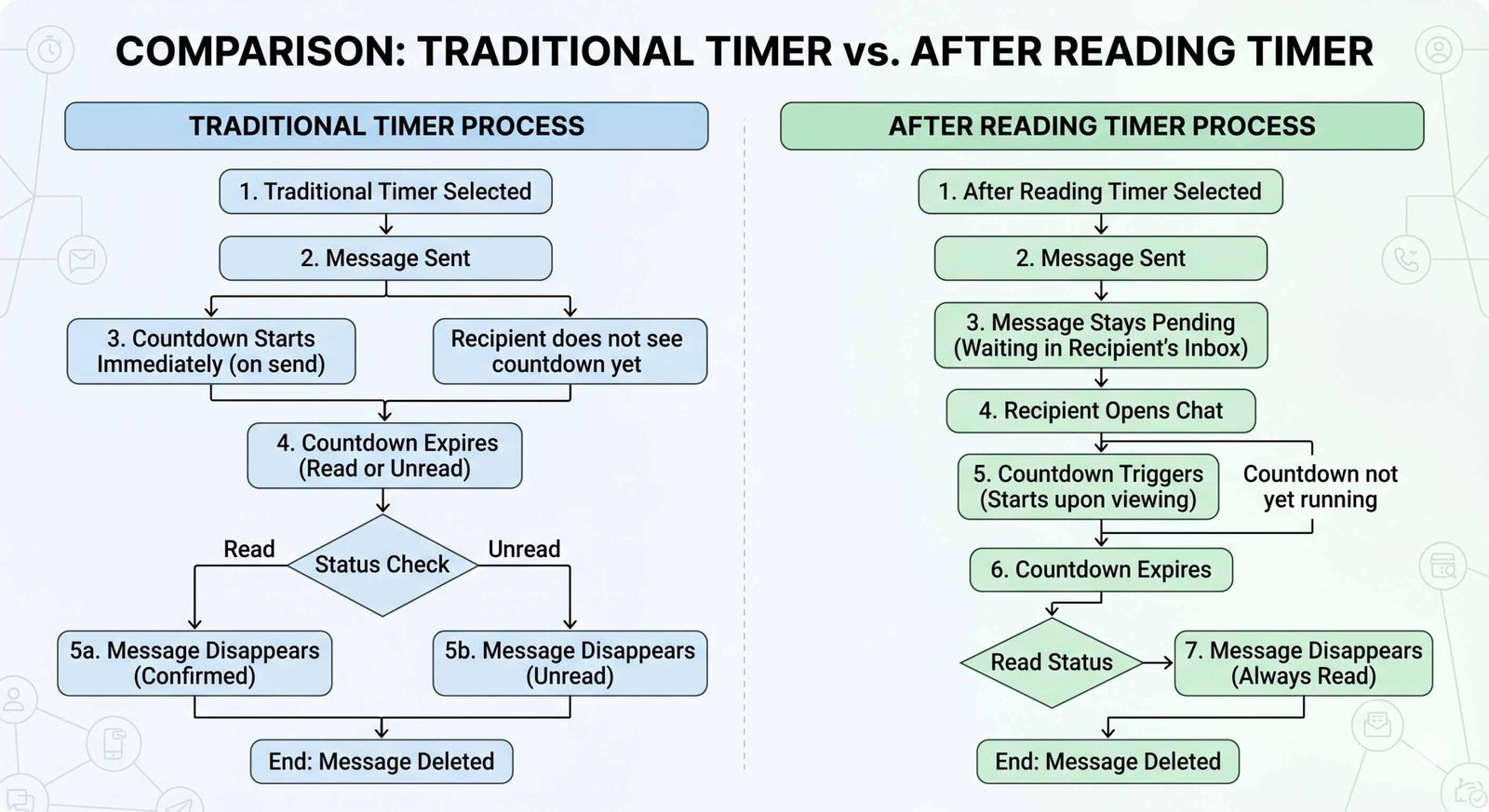
The new framework resolves this issue completely. Instead of calculating life cycles from the time of transmission, the internal countdown engine pauses execution until a definitive Read Receipt or conversation open event is logged on the recipient’s local device database. This gives users absolute certainty that their messages are viewed exactly once, surviving for a brief, controlled duration thereafter before being programmatically wiped from physical storage on both endpoints.
Step-by-Step Guide to Activate After Reading Messages on iOS
Deploying this capability within the Apple ecosystem requires access to compatible application versions, such as those distributed via Apple TestFlight. We have verified the implementation steps to ensure your setup process is executed seamlessly.
Step 1: Accessing Advanced Privacy Parameters
Open your application and navigate directly to the primary configuration dashboard. Select the Settings tab located at the bottom-right corner of the interface. From there, select Privacy to reveal the system’s cryptographic and visibility submenus.
Step 2: Accessing Default Message Settings
Scroll down until you locate the menu item labeled Default message timer. This section governs the automated behavior of all newly initiated communication threads.
Step 3: Selecting the Active Read-Based Timer
Within this selection screen, alongside the classic legacy timeframes, you will see a new standalone section designated as After reading. Tap this option to expand the specific read-based sub-parameters.
Step 4: Configuring the Expiration Windows
Select your preferred operational lifespan from the available options:
- 5 minutes: Ideal for real-time verification codes, temporary location sharing, or immediate transactional data.
- 1 hour: Well-suited for fluid business discussions, collaborative project notes, or sensitive professional data needing brief review periods.
- 12 hours: Perfect for cross-timezone communications where the recipient requires sufficient time to review and act upon detailed directives before data erasure occurs.
Once selected, tap the back button to save the configuration natively. All new individual chat windows will now instantly adopt this secure workflow.
How to Set Up After Read Disappearing Messages on Android
The process within the Android architecture follows a highly structured sequence designed to provide granular control over the local storage ecosystem.
Direct Thread Configuration Method
If you prefer not to apply a sweeping global parameter across your entire contact database, you can enforce this setting on a specific conversation thread.
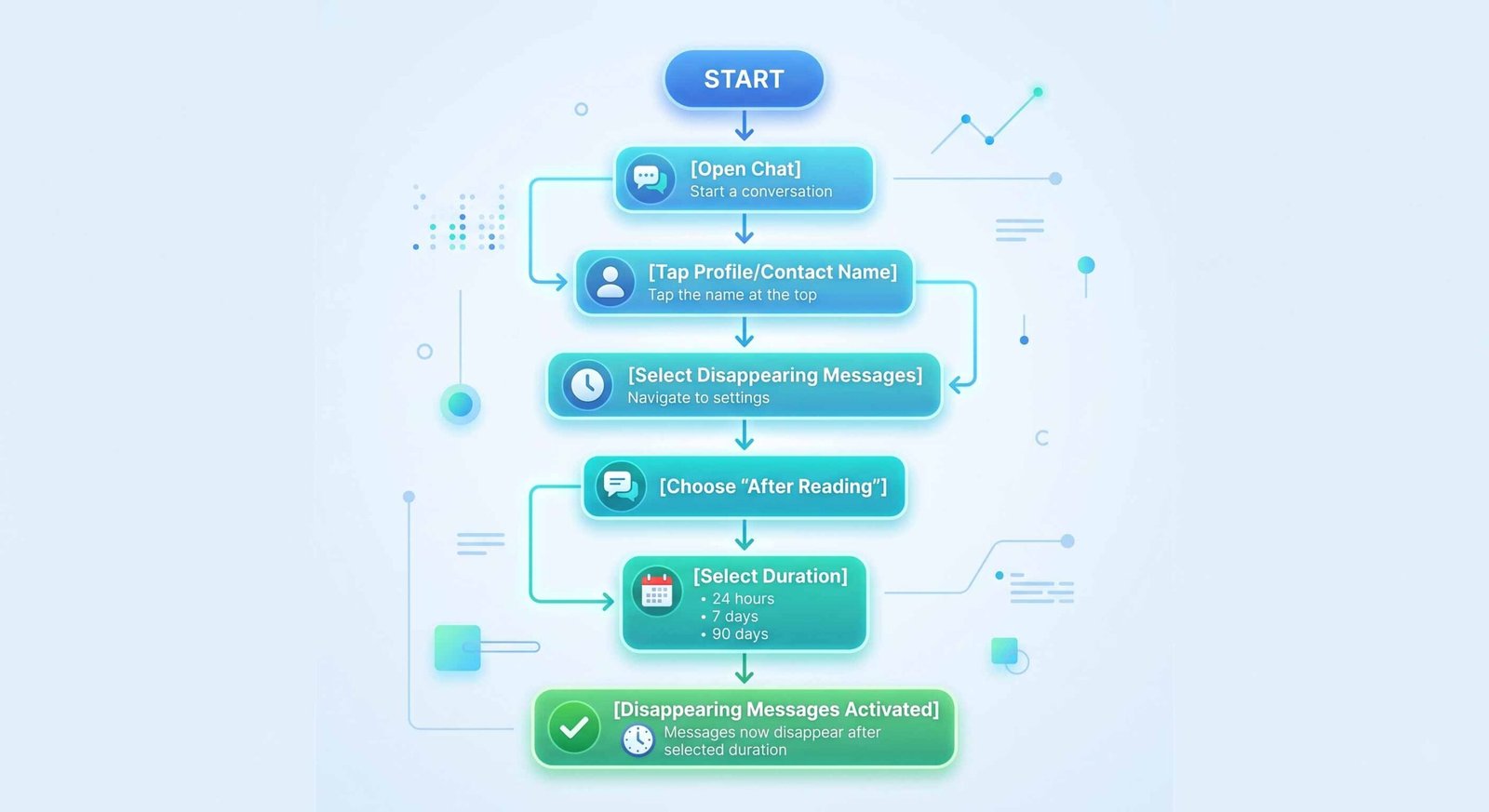
- Launch the application and tap directly into the chat thread you wish to secure.
- Tap on the Contact Profile Name or group subject header at the very top of the screen to open the granular metadata page.
- Scroll through the options and select Disappearing messages.
- If prompted with a privacy onboarding notification, tap Continue.
- Toggle the configuration away from the default settings and select the After reading option.
- Define the exact duration window (5 minutes, 1 hour, or 12 hours) that best matches your structural security goals.
Technical Performance and Safety Fallbacks
We must emphasize that this system operates with an automated safety fallback mechanism to protect device storage from infinite data loops. In scenarios where a message is transmitted with an active After Reading timer, but the target recipient permanently loses network connectivity, uninstalls the application, or leaves the notification unopened, WhatsApp enforces a strict 24-hour global fallback limit.
Critical Safety Rule: If an “After Reading” message remains completely unread on the server or the recipient’s device for a consecutive 24-hour period, the system bypasses the read-trigger requirement and automatically deletes the payload from existence.
Additionally, this privacy protocol applies exclusively to new incoming and outgoing chat payloads. Activating the option will never alter, modify, or retroactively purge older messages already archived within your chat databases.
Analyzing Other New WhatsApp Beta Infrastructure Enhancements
Beyond the breakthroughs in ephemeral messaging, developers have pushed a massive wave of UI overhauls, community organization tools, and localized optimization frameworks across both web clients and native apps.
Tailored Web Chat Themes and Canvas Updates
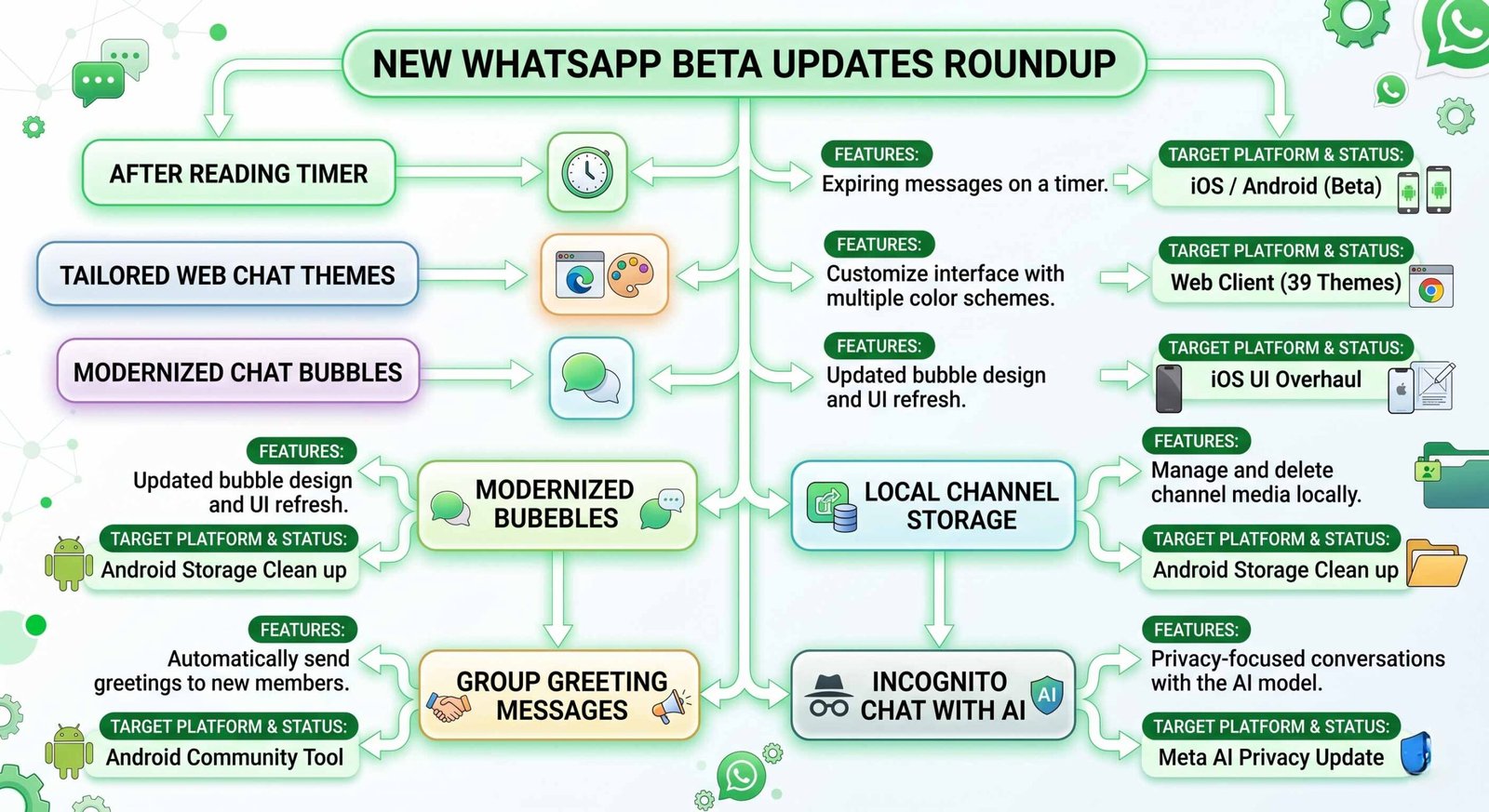
The engineering team has optimized the web-based architecture by moving away from raw quantity to deliver highly polished, responsive visual styles. While initial developmental outlines indicated a launch of 49 standalone styles, the deployment has been refined down to 39 high-quality web chat themes.
Among these, eight select profiles contain dynamic, custom wallpapers that diverge radically from the standard, monotone default canvas. This visual update ensures that professional environments can adjust contrast, minimize eye strain, and categorize distinct chat environments with minimal cognitive friction.
Modernized Chat Bubbles on iOS
Users on iOS will notice a complete aesthetic transformation of the traditional message interface. Developers are rolling out heavily redesigned chat bubbles featuring a vastly increased corner radius. These rounded contours provide a sleek, flowing appearance.
More importantly, this design update completely removes traditional borders around shared media files inside chat windows. Images, vectors, and video previews now sit edge-to-edge within the conversation canvas, creating a fluid reading experience.
Local Channel Media Storage Cleanup Tools
To address the critical issue of storage bloating caused by media tracking across broadcast channels, a new optimization tool has been integrated natively into the Android app.
Users can now enter their followed channels and manually remove media from followed channels without needing to wipe the entire text history. The tool provides granular filters, enabling users to isolate and delete large files by type—such as videos, heavy images, or PDF documents—thereby preserving local device storage space.
Automatic Group Greeting Messages for Admins
Community organization receives an upgrade with the inclusion of automated welcoming scripts. Group administrators can now configure an optional automatic greeting message for group chats.
When a new member joins via an invite link or manual addition, this predefined greeting instantly surfaces within the information deck or thread view, explicitly stating the group’s purpose, operational guidelines, and compliance expectations.
Enhanced Status Feedback with Quick Status Emoji Reactions
To streamline platform interactions, developers have adjusted the layout of the status reply window. The app now displays three emojis to quickly react to status updates built directly into the active text entry field.
By prioritizing the Smiling Face with Heart-Eyes, Face with Tears of Joy, and Face with Open Mouth, the app reduces the multi-step menu navigation previously required to send a basic reaction, making engagement incredibly quick.
Channel Replies and Extended Thread Persistence
Broadcasting communication becomes much more interactive with the introduction of structured channel replies on Android. Channel administrators can now quote and directly reply to their historical broadcasts, keeping discussions highly structured.
Even though channels automatically purge media and text histories after a 30-day window, the system allows admins to quote older updates beyond this limit. This allows new followers to see the reference text contextually, even if the primary original message source file has crossed its 30-day retention threshold.
Incognito Chat Integration with Meta AI
Privacy enhancements extend to artificial intelligence interactions with the announcement of Incognito Chat with Meta AI. Backed by an infrastructure known as Private Processing, this mode ensures that interactions with the conversational engine are never saved to a permanent log or user data profile.
This environment utilizes verified confidential computing architectures, audited thoroughly by independent third-party firms, to ensure that cloud-based AI queries remain fully encrypted and invisible to external entities.
Refreshed Branding for Business Profiles
Finally, commercial accounts are receiving visual updates to match contemporary branding guidelines. The software update introduces a redesigned business app icon on iOS, matching the clean, modern look of the standard consumer version. This change brings uniform branding across all versions of the application globally.
Step-by-Step Technical Verification for Troubleshooting
If you are trying to configure the read-based timers but cannot locate the settings menu on your smartphone, follow this systematic validation process to resolve the issue:
- Check Build Verification: Ensure your device is registered on an official distribution channel like Google Play Beta or Apple TestFlight. The feature requires iOS version 26.19.10.72 or higher, or corresponding Android beta frameworks.
- Verify Read Receipts: Because the countdown depends on communication triggers, both you and the recipient must have Read Receipts enabled (Settings > Privacy > Read Receipts). If either party disables read receipts, the system cannot detect when a message is opened and will default to the 24-hour expiration fallback.
- Execute a Forced Application Restart: If an update has occurred but the UI elements fail to populate, navigate to your device settings, select apps, choose WhatsApp, and execute a Force Stop. Clear the application cache (do not clear data) and reboot the app to force the server configuration flags to reload.
FAQs
Can the recipient take a screenshot of an After Reading message?
Yes. Much like traditional disappearing text, the system does not actively block native operating system screen captures or media recordings. For total security of ultra-sensitive files, use the specialized View Once setting for photos and videos.
What happens if the recipient has their Read Receipts turned off?
If a recipient turns off their read receipts, the application cannot track the exact moment a message is viewed. Consequently, the conversation engine enforces the built-in 24-hour fallback rule, securely deleting the unverified payload 24 hours after it was sent.
Will setting an After Reading timer affect my existing chat archives?
No. The configuration strictly applies to new text payloads transmitted after the setting is turned on. Your existing history, media archives, and previously logged messages remain untouched.
Is the After Reading timer available on WhatsApp Web or Desktop?
The feature is initially rolled out for configuration via mobile beta clients on Android and iOS. However, once a mobile chat thread is configured, the expiration rules sync and apply when viewing those threads on linked desktop devices.
Can group chat administrators enforce this timer for all members?
Initially, this setting is engineered primarily for individual, one-on-one communication windows. For group environments, admins can utilize standard disappearing message timers to manage clean historical retention limits.
What are the exact duration options available for selection?
The feature provides three distinct, read-based countdown intervals: 5 minutes, 1 hour, and 12 hours.
Does the sender’s copy disappear at the same time as the recipient’s copy?
The recipient’s copy deletes exactly when the selected countdown timer expires after opening. The sender’s app processes this deletion locally based on the synchronization of that read token across the network.
How does this feature differ from the traditional View Once feature?
View Once is built explicitly for media assets like photos and voice notes, vanishing the exact second the file container is closed. The After Reading timer is designed specifically for text conversations, allowing the content to remain readable for a set duration (like 5 minutes or an hour) after it is opened.
If I back up my device chat data, will these messages be saved forever?
If a message backup runs during the brief window before a message disappears, the text will be included in the cloud backup file. However, once you restore that backup onto a new device, WhatsApp’s background database engine automatically purges the expired message.
Can I turn off the After Reading timer at any point in the discussion?
Yes. Either participant in an individual conversation can adjust privacy parameters at any time. Toggling the setting back to “Off” will stop future messages from automatically deleting.

Selva Ganesh is a Computer Science Engineer, Android Developer, and Tech Enthusiast. As the Chief Editor of this blog, he brings over 10 years of experience in Android development and professional blogging. He has completed multiple courses under the Google News Initiative, enhancing his expertise in digital journalism and content accuracy. Selva also manages Android Infotech, a globally recognized platform known for its practical, solution-focused articles that help users resolve Android-related issues.





Leave a Reply