
Increase Emoji Size in Gboard– For years, we navigated the constant evolution of mobile communication, observing how visual expression transitioned from simple punctuation smileys to intricate, high-definition expressive icons. As smartphone screens expanded into massive high-resolution displays, a common operational frustration persisted across millions of devices: the static, rigid dimensions of the keyboard picker. We frequently found ourselves squinting at tiny visual icons packed tightly together or accidentally tapping the wrong expression during fast-paced conversations.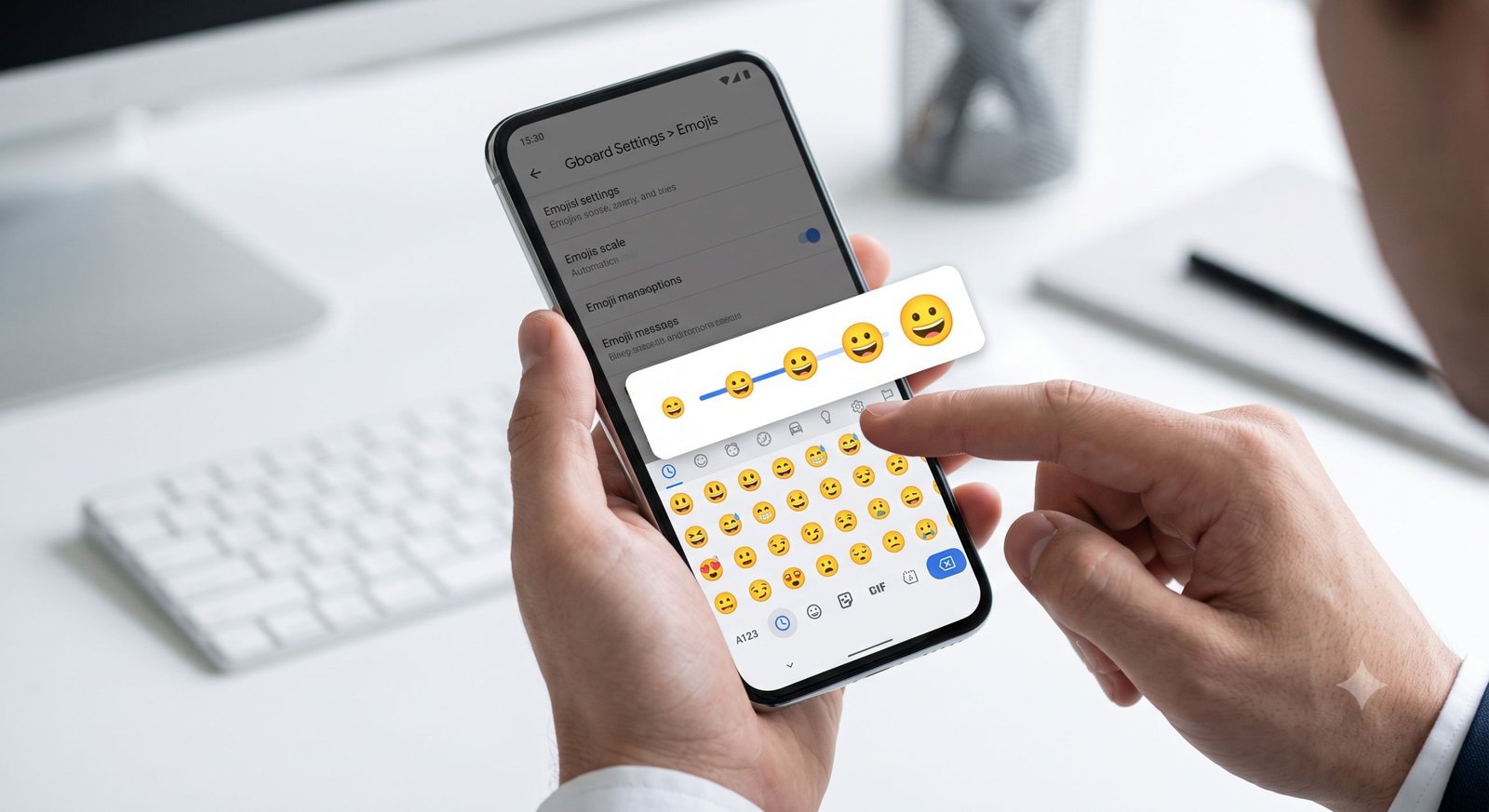
When Google introduced granular visual customization to its flagship Android keyboard, we immediately integrated the latest updates into our daily workflows. We wanted to see firsthand how direct control over keyboard display density changes typing speed, accessibility, and overall user satisfaction. Through rigorous real-world testing across various Android devices and display resolutions, we documented the exact mechanics of the Gboard emoji size slider, evaluated its visual impact, and explored the broader suite of workflow enhancements rolling out alongside it.

Understanding the Gboard Emoji Size Slider
The core innovation addressing visual clarity within the keyboard is the Emoji Size slider. Traditionally, keyboard interfaces enforced a strict, non-adjustable grid. This legacy design forced every user—regardless of screen size, visual acuity, or personal preference—to interact with identical dimensions.
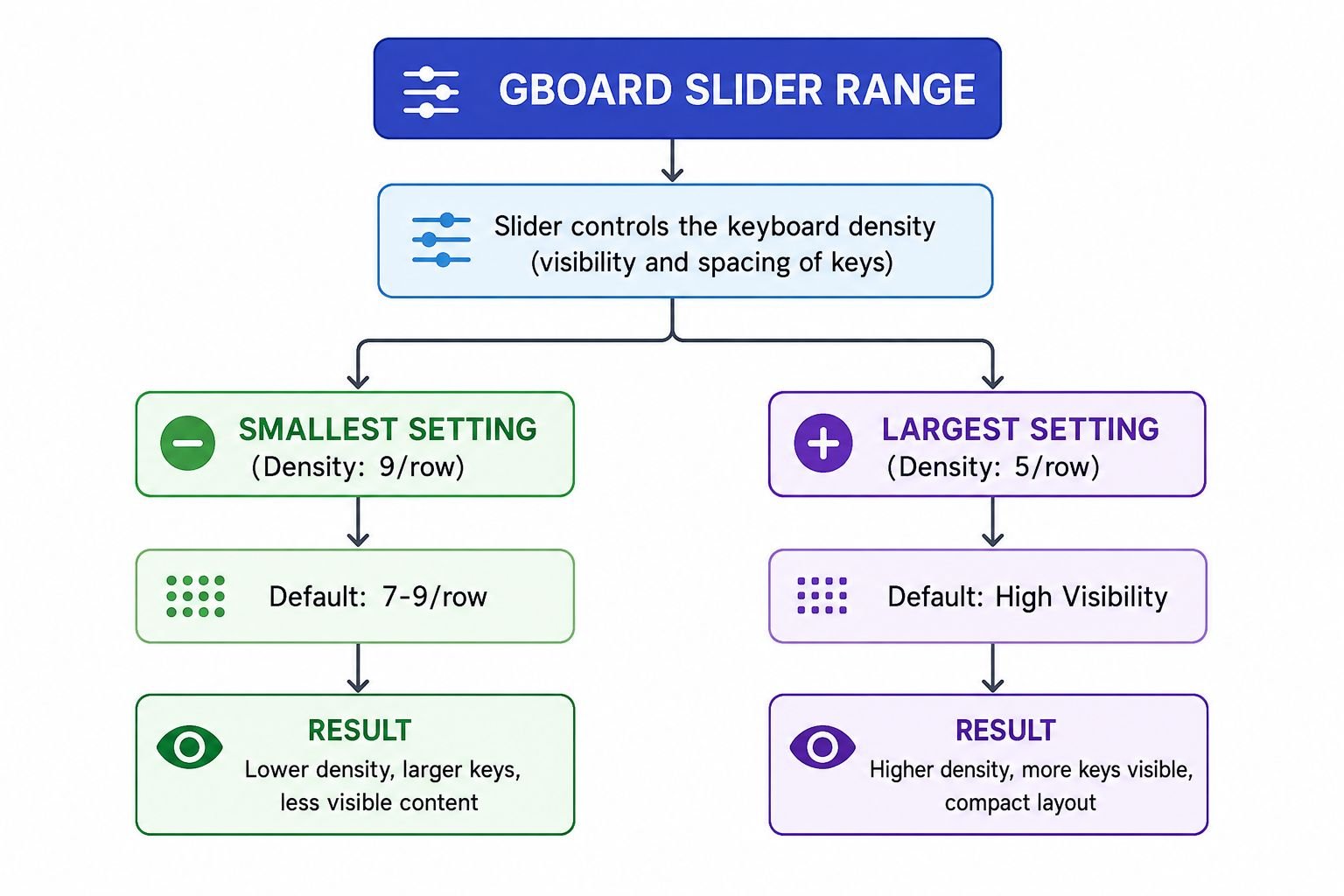
Our hands-on analysis revealed that the new slider dynamically alters the layout density of the emoji selection panel. Instead of altering how large an emoji appears in your sent message bubble, this utility directly scales the interactive icons inside your keyboard palette.
-
Minimum Scale Setting: Compresses the icons to display up to 9 emojis per horizontal row. This high-density view is ideal for power users who memorize icon positions and prioritize rapid navigation across vast symbol libraries without endless scrolling.
-
Maximum Scale Setting: Enlarges each individual icon, reducing the row capacity down to 5 emojis per horizontal row. This low-density view dramatically boosts touch accuracy, enhances visual details, and provides vital accessibility support for anyone with visual fatigue or motor impairments.
-
Intermediate Steps: Offers balanced increments (including half-step adjustments like 8, 8+, 7, 7+, and 6) so you can dial in the exact balance between icon detail and screen economy.
Step-by-Step Walkthrough to Increase Emoji Size
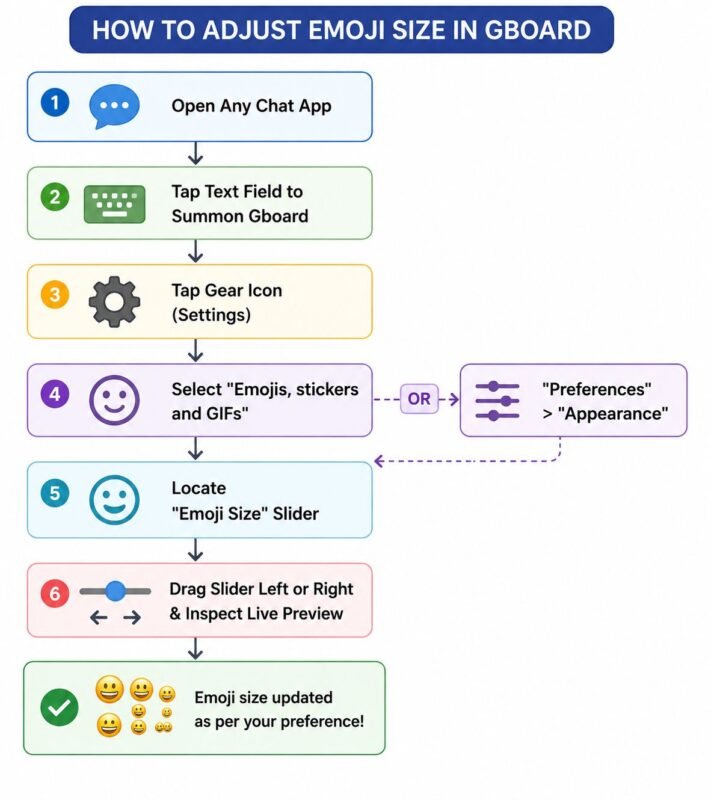
To help you configure this feature immediately, we created a clear, step-by-step path based on our practical setup tests:
-
Summon the Keyboard Interface: Launch any application that accepts text entry (such as Google Messages, WhatsApp, or Gmail) and tap the text field to display Gboard.
-
Open Gboard Settings: Tap the Gear icon situated in the top utility row of the keyboard. If the toolbar is collapsed, tap the chevron or four-square menu icon to reveal the gear shortcut.
-
Navigate to Display Preferences: Select the section labeled Emojis, stickers and GIFs (in select newer builds, navigate via Preferences > Appearance).
-
Locate the Emoji Size Control: Scroll down until you identify the dedicated Emoji Size slider located directly beneath the standard font and layout configurations.
-
Adjust the Slider: Drag the slider thumb toward the right to increase icon dimensions. Notice the real-time layout preview shifting between 9 and 5 icons per row.
-
Confirm and Apply: Exit settings back to your text field, switch to the emoji tab, and enjoy the newly expanded touch targets.
Key Accompanying Gboard Productivity Upgrades
While testing the expanded emoji palette, we uncovered several high-impact productivity tools integrated into the same software generation. These companion features resolve long-standing pain points in mobile clipboard management and predictive typing:
| Feature | Previous Behavior | Updated Behavior | Primary Benefit |
| Emoji Size Slider | Fixed density (static grid) | Dynamic scaling (5 to 9 per row) | Enhanced touch accuracy and visual clarity |
| Clipboard Retention | Strict 1-hour automatic wipe | Adjustable retention from 2 up to 24 hours | Extended data security without premature loss |
| Suggestion Dismissal | Persistent accidental pop-ups | Quick “X” button with temporary undo | Clean workspace and clutter-free suggestions |
| Contextual Stickers | Generic static suggestions | Responsive generative stickers & blends | More personalized, relevant expressiveness |
Extended Clipboard History Retention
For years, the standard Android clipboard maintained a strict 1-hour timeout window for unpinned snippets. In fast-paced multitasking scenarios, we frequently lost valuable copied links or reference numbers simply because we got sidetracked by another task. The updated settings introduce an extended clipboard retention slider, empowering users to configure temporary clipboard memory across custom intervals ranging from 2 hours up to 24 hours. This ensures critical snippets stay accessible throughout an entire workday without requiring permanent pinning.
Fast Clipboard Suggestion Dismissal
When copying sensitive credentials, private notes, or accidental taps, Gboard previously plastered the copied snippet across the suggestion strip until replaced. Google resolved this by embedding a dedicated “X” dismissal button alongside active clipboard chips. Tapping the dismissal immediately purges the active visual recommendation, backed by a momentary Undo prompt in case of accidental dismissal.
How to Join the Gboard Beta Channel for Early Access
Because innovative UI adjustments roll out incrementally through staging builds, accessing these features early requires enrolling in the testing channel. We streamlined our own testing process using two primary onboarding methods:
Method 1: The Official Google Play Store Beta Path
-
Open the Google Play Store on your Android device.
-
Search for Gboard and open its official store listing page.
-
Scroll down beneath the developer contact section until you see Join the beta.
-
Tap Join and confirm your selection.
-
Wait several minutes for the Play Store servers to assign your account credentials, then tap Update once the beta package surfaces.
Method 2: Third-Party Enrollment Trackers (Beta Maniac)
When the primary Google Play beta slots reach maximum capacity, enrollment via the standard storefront can become temporarily restricted. In our testing lab, we utilize utilities such as Beta Maniac. These management apps constantly scan official Google Play API endpoints for dropped or opened slots, automatically reserving a position and notifying you the instant a seat becomes accessible.
Frequently Asked Questions
1. Does increasing the emoji size in Gboard send bigger emojis to other people?
No. The Emoji Size slider strictly scales the selection interface inside your keyboard picker to make icons easier to see and tap. The sent emojis follow standard Unicode sizing rules defined by the receiving messaging app.
2. Why does my Gboard app not have the Emoji Size slider yet?
This setting is distributed via staged server-side rollouts, primarily across beta builds (such as version 18.93.x and newer). Ensure your app is updated to the latest beta version through the Play Store.
3. What is the difference between 5 and 9 emojis per row?
At the 5 emojis per row setting, icons are rendered at maximum scale for enhanced readability and larger touch targets. At 9 emojis per row, icons are smaller, maximizing screen economy so you can scan more symbols at once.
4. Will changing the emoji size impact the Emoji Kitchen feature?
No. The Emoji Kitchen mashup bar remains positioned at the top of the panel and maintains its standard dynamic sticker display dimensions regardless of slider adjustments.
5. How does the new clipboard retention slider work?
The updated retention tool lets you extend how long unpinned copied items remain in your temporary clipboard history, allowing you to choose intervals from 2 hours up to 24 hours instead of the standard 1-hour limit.
6. Can I quickly hide a copied password appearing in my suggestion strip?
Yes. You can tap the “X” button directly next to the clipboard suggestion strip to dismiss the preview immediately.
7. Is the Gboard beta safe for daily use on a primary device?
Yes. In our ongoing tests, official Gboard beta builds have demonstrated solid stability for everyday communication, although minor visual inconsistencies may occasionally appear before public production releases.
8. Does increasing emoji size make the overall keyboard taller?
No. The overall keyboard container height remains governed by your Keyboard Height preferences. The slider changes the internal grid density and icon scale within the dedicated emoji picker window.
9. Can I adjust emoji sizing on Gboard for iOS (iPhone)?
Currently, this granular slider functionality is exclusive to Android builds. iOS keyboard layouts remain governed by native Apple input architecture and standard system display scaling settings.
10. How do I leave the beta program if I encounter bugs?
Open the Gboard listing on Google Play, scroll down to the beta testing section, tap Leave, uninstall the beta build, and reinstall the stable public release from the store.

Selva Ganesh is a Computer Science Engineer, Android Developer, and Tech Enthusiast. As the Chief Editor of this blog, he brings over 10 years of experience in Android development and professional blogging. He has completed multiple courses under the Google News Initiative, enhancing his expertise in digital journalism and content accuracy. Selva also manages Android Infotech, a globally recognized platform known for its practical, solution-focused articles that help users resolve Android-related issues.




Leave a Reply